
'%3e%3cpath%20fill-rule='evenodd'%20clip-rule='evenodd'%20d='M6.99935%2012.8327C10.221%2012.8327%2012.8327%2010.221%2012.8327%206.99935C12.8327%203.77769%2010.221%201.16602%206.99935%201.16602C3.77769%201.16602%201.16602%203.77769%201.16602%206.99935C1.16602%2010.221%203.77769%2012.8327%206.99935%2012.8327Z'%20stroke='%23666666'%20stroke-linecap='round'%20stroke-linejoin='round'/%3e%3cpath%20d='M1.16602%207H12.8327'%20stroke='%23666666'%20stroke-linecap='round'%20stroke-linejoin='round'/%3e%3cpath%20fill-rule='evenodd'%20clip-rule='evenodd'%20d='M6.99935%2012.8327C8.28802%2012.8327%209.33268%2010.221%209.33268%206.99935C9.33268%203.77769%208.28802%201.16602%206.99935%201.16602C5.71068%201.16602%204.66602%203.77769%204.66602%206.99935C4.66602%2010.221%205.71068%2012.8327%206.99935%2012.8327Z'%20stroke='%23666666'%20stroke-linecap='round'%20stroke-linejoin='round'/%3e%3cpath%20d='M2.875%202.95898C3.93063%204.01461%205.38896%204.66754%206.99978%204.66754C8.61062%204.66754%2010.069%204.01461%2011.1246%202.95898'%20stroke='%23666666'%20stroke-linecap='round'%20stroke-linejoin='round'/%3e%3cpath%20d='M11.1246%2011.0425C10.069%209.98691%208.61062%209.33398%206.99978%209.33398C5.38896%209.33398%203.93063%209.98691%202.875%2011.0425'%20stroke='%23666666'%20stroke-linecap='round'%20stroke-linejoin='round'/%3e%3c/g%3e%3cdefs%3e%3cclipPath%20id='clip0_1267_9109'%3e%3crect%20width='14'%20height='14'%20fill='white'/%3e%3c/clipPath%3e%3c/defs%3e%3c/svg%3e)


 Sentro ng Serbisyo
Set Control Linkage Rules
This article aims to introduce the capabilities of template control linkage rules.
Special Note: (1) This feature is only supported in Professional Edition and above. (2) Template control linkage is only supported for filling within the signature page; OpenAPI fill/prefill is not currently supported. (3) Linkage rules support 7 execution actions: Show, Hide, Required, Not Required, Assign Value, Clear, Disable.
1. Feature Overview
1.1 Feature Introduction
On the contract template settings page, you can set linkage rules (trigger conditions and execution actions) for specific fill controls to achieve logical associations between multiple fill fields. Through this configuration capability, a condition from one control can trigger multiple controls to perform the following actions:
| Action | Effect |
|---|---|
| Show / Hide | Control whether the target control is visible on the signature page |
| Required / Not Required | Toggle the required status of the target control |
| Assign Value | Automatically populate the target control with custom values/option values, values from other controls, or date calculation results |
| Clear | Set the current value of the target control to empty |
| Disable | Gray out the target control so it cannot be manually edited (but still supports being filled and overwritten via assignment schemes) |
1.2 Applicable Scenarios
Applicable to general contract basic configurations, as well as core contracts for services, procurement, and sales. Based on the fill results of controls such as radio buttons, checkboxes, dropdowns, and dates, it dynamically controls the display/hide, required status, or automatically completes assign value, clear, and disable operations for other fill items. This simplifies the filling process, reduces invalid inputs, ensures critical data is not mistakenly modified, and improves contract filling efficiency and standardization.
For example:
-
Show/Hide & Required Linkage: When “Installment Payment” is selected in the contract, fill items such as “Installment Amount” and “Payment Date” are automatically displayed and set as required; when “Lump-sum Payment” is selected, these fill items are hidden to avoid displaying unnecessary content in the contract.
-
Signatory Entity Linkage: Select “Enterprise Signing” to display and require the Unified Social Credit Code and legal representative information; select “Individual Signing” to switch to ID number and contact address.
-
Value Assignment Linkage: When “Invoice Type” is set to “VAT Special Invoice”, the “Bank Name” and “Bank Account” are automatically filled into the corresponding fields, eliminating the need for redundant input.
-
Date Linkage Calculation: After filling in the “Contract Start Date” and “Contract Term”, the “Contract Expiration Date” is automatically calculated, removing the need for manual day counting.
-
Clear + Mandatory Field Linkage: Controls have preset default values, but in certain business branches, the signatory must fill them out personally. You can clear the default value first and then set it as mandatory to force re-entry.
-
Value Assignment + Disable Linkage: After automatic value assignment, the control is locked to prevent signatories from accidentally modifying it, which could lead to data inconsistency.
2. Configuration Method Description
2.1 Control Linkage Rule Configuration Entry
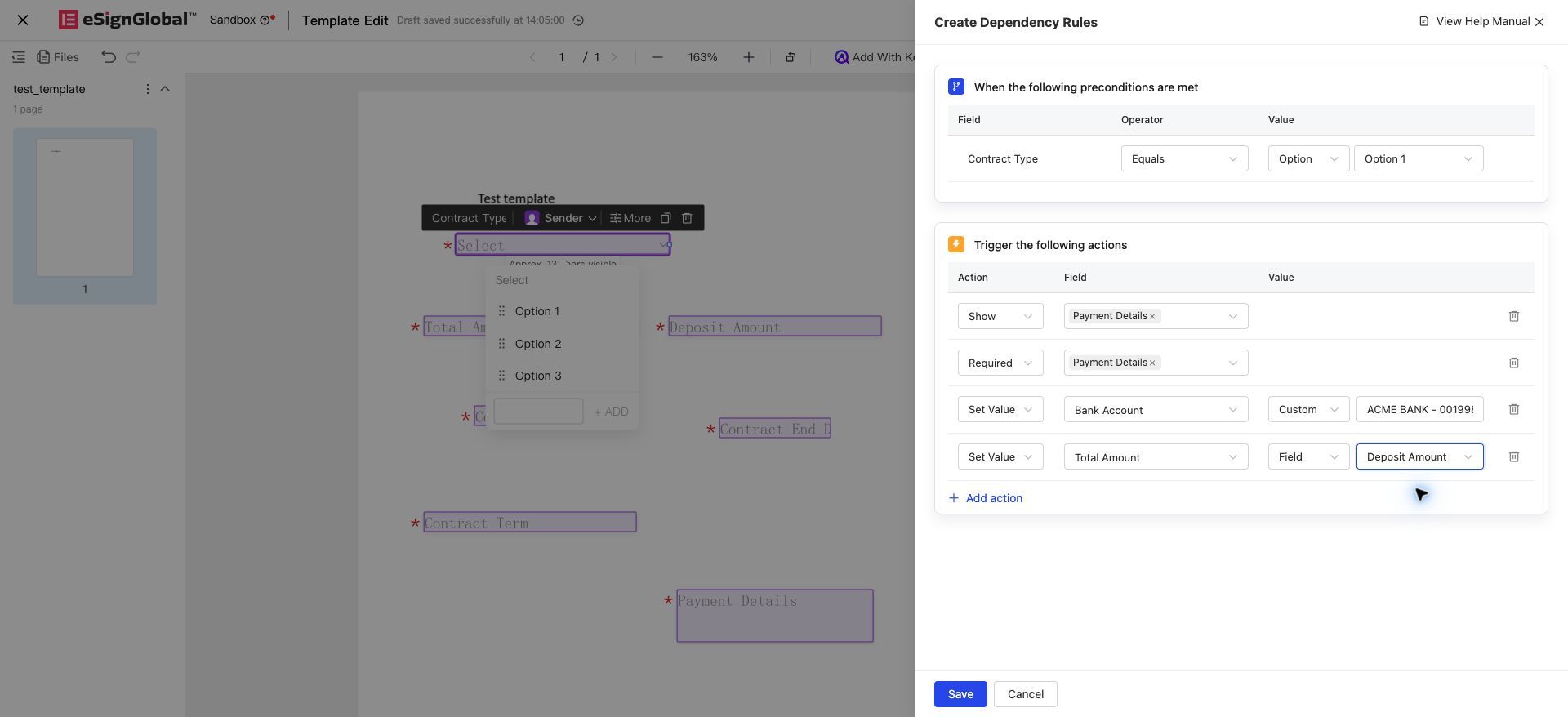
When you want to trigger state changes in other input controls based on the value of a specific input control, you need to create rules in the control property entry for the “Trigger” rule.
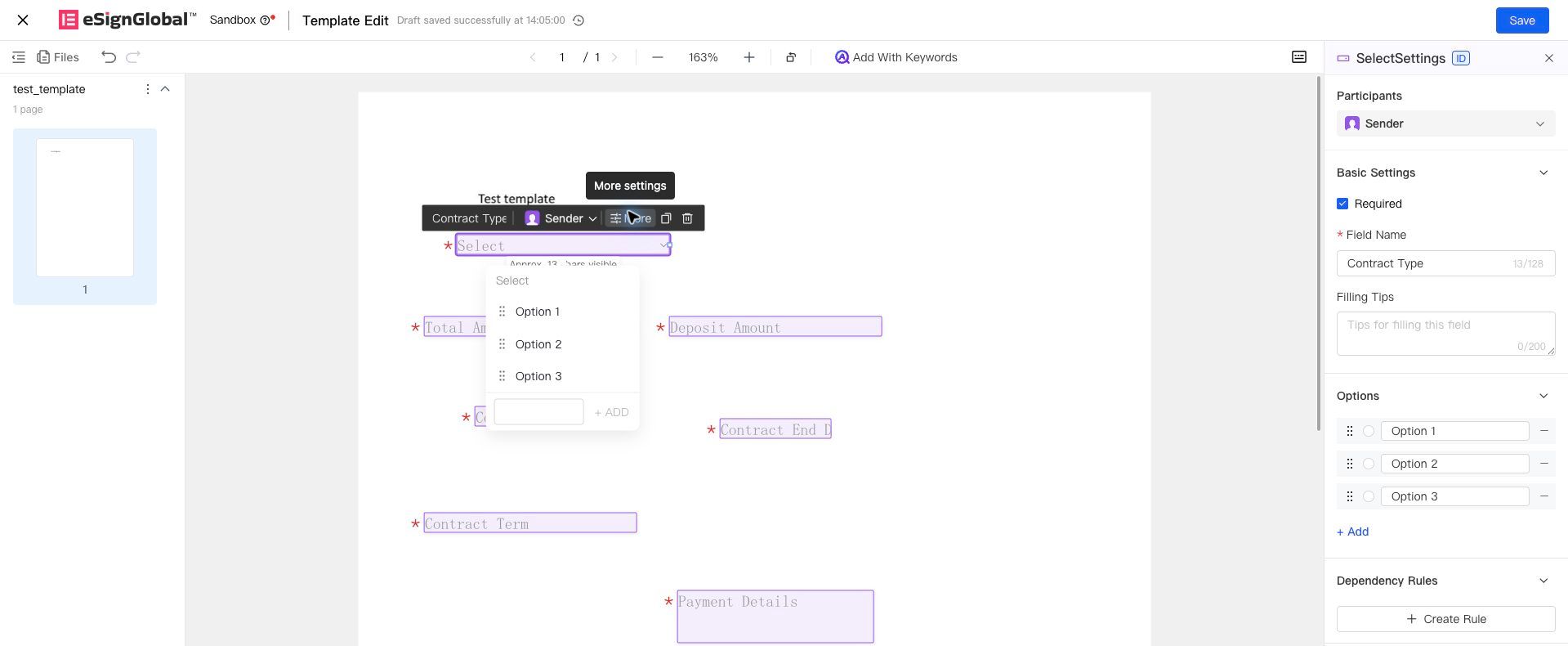
Click the control to bring up the right-side property panel, click “Create Rule” to enter the rule editing page.
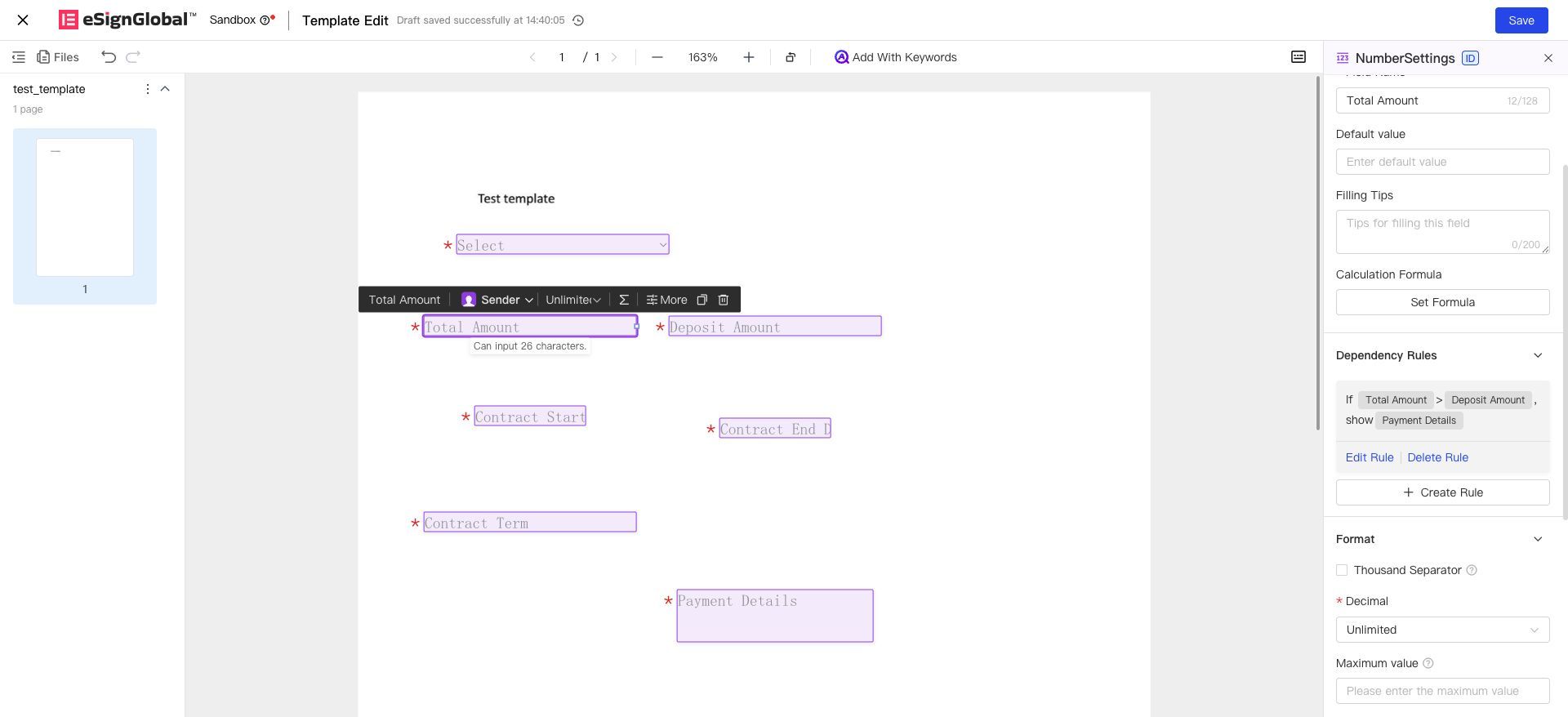
After configuring the rule, you can view the specific rule in the right-side property panel. From here, you can also enter the rule editing interface or delete the rule.
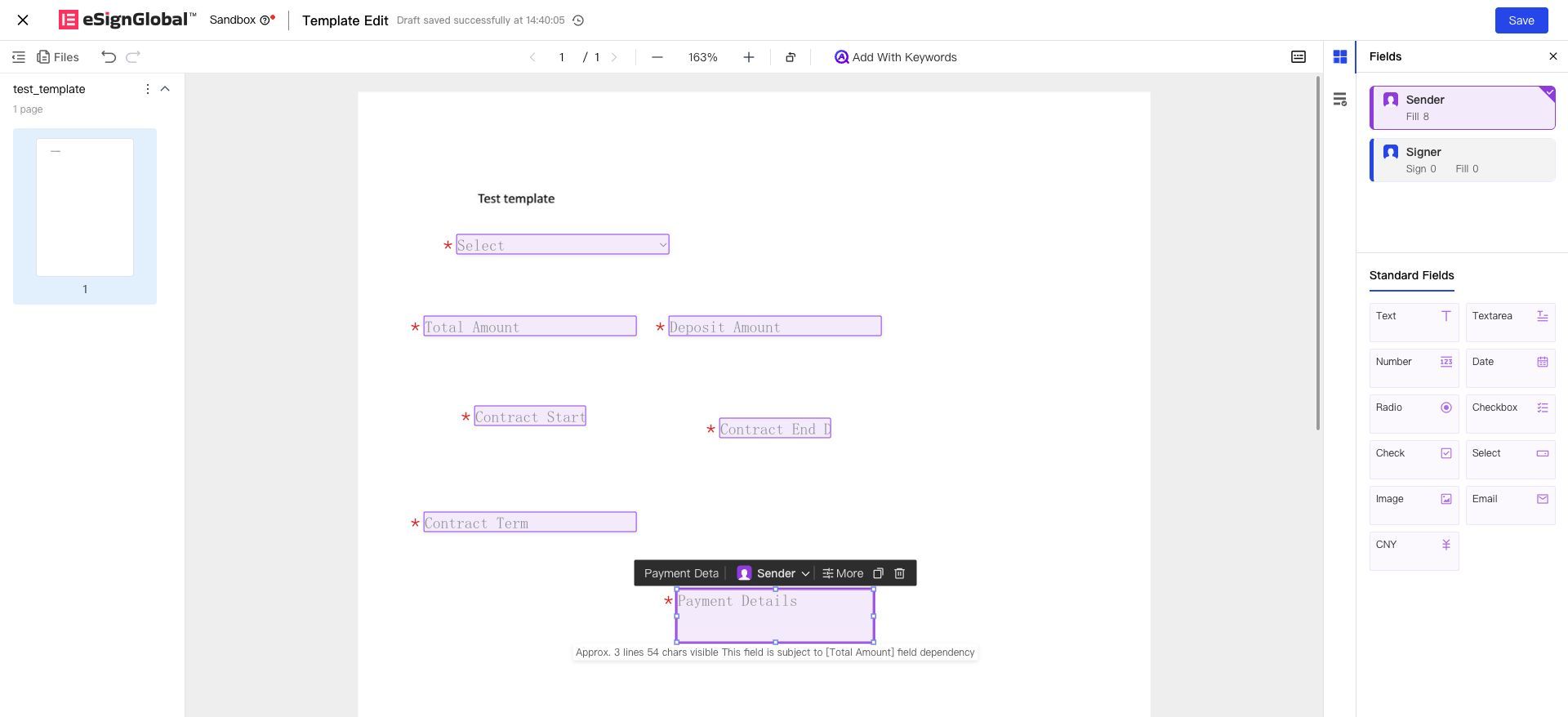
Controls governed by linkage rules will also show prompts indicating which controls affect their linkage status when clicked.
2.2 Control Linkage Rule Configuration Method
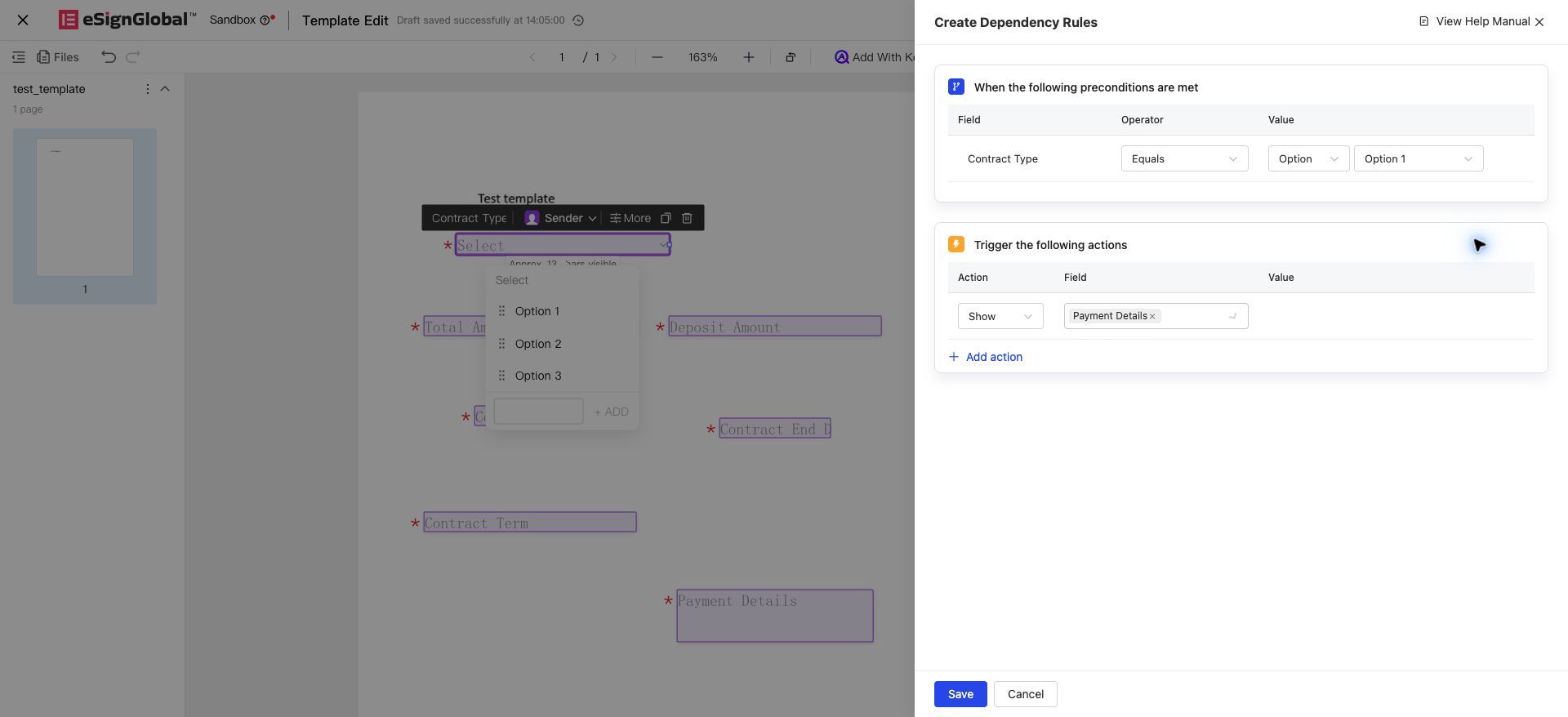
On the linkage rule configuration page, you can configure trigger conditions and linkage results separately. Since the entry point for configuring rules is within the properties of the control under the “Trigger” rule, the control serving as the trigger condition is the current control itself (multiple controls cannot currently act together as trigger rules). This single control can trigger multiple other controls to execute different result actions.
2.2.1 Trigger Condition Configuration
Trigger conditions are set in the [“When the following prerequisites are met”] area:
-
Control: The trigger control. When the value of this control meets a certain condition, the linkage is triggered.
-
Operator: The logical operation condition for the value of this control. For example, you can select equals, not equals, is empty, is not empty, etc. Different types of controls support different operators.
-
Value: The input value for this control. It can be a specific value or the value of another control of the same type.
-
When it is a specific value, first select “Option Value”, then select or enter the specific value. If it is a dropdown option, radio button, or checkbox, the specific option values can be selected directly. If it is a number, single-line text, etc., the specific option value must be entered manually.
-
When it is the value of another control of the same type, first select “Control Value”, then select a control of the same type (here referring to data type in general, not requiring exactly the same control type). For example, set the condition as: the value of the “Total Contract Amount” control is greater than the value of the “Advance Payment Amount” control.
-
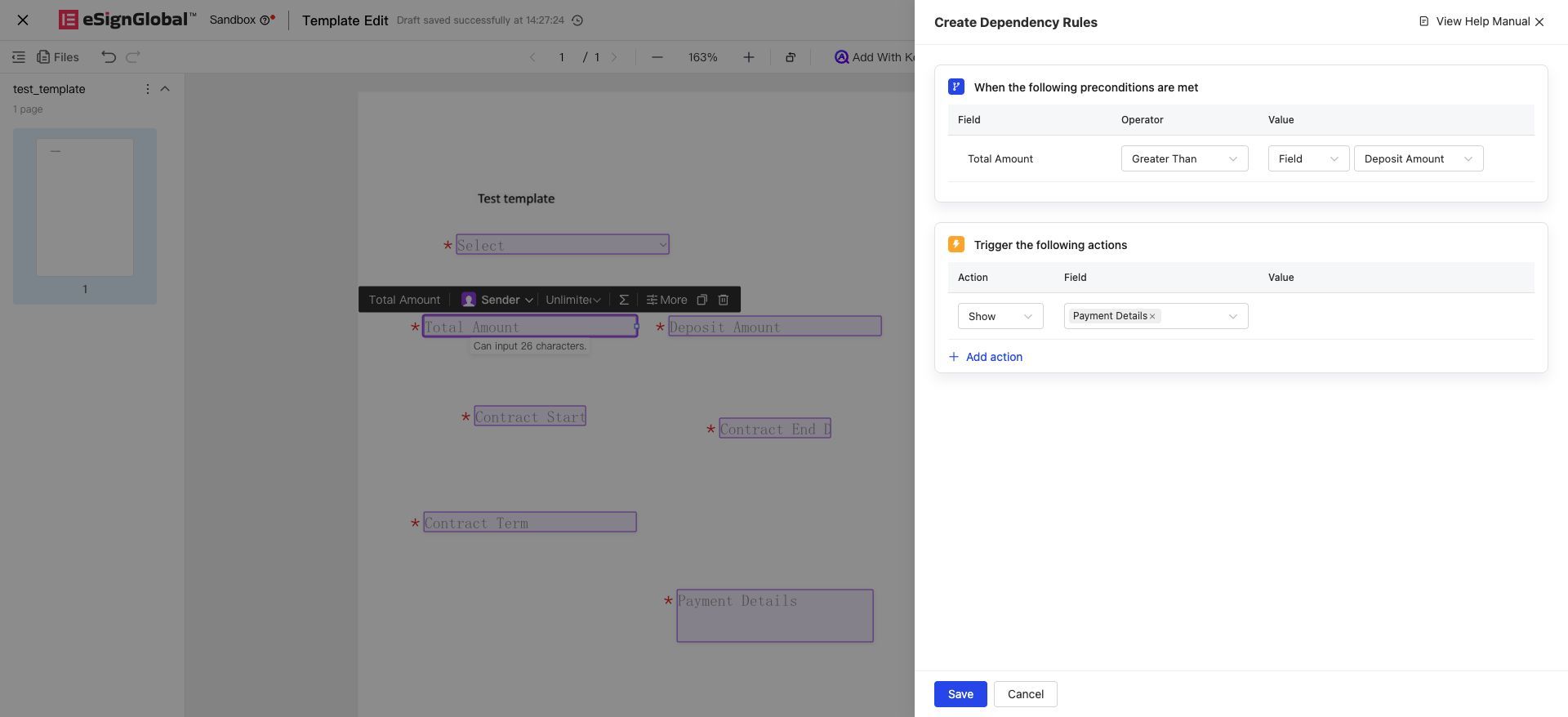
When a date control is used as the trigger control, the supported operators are: is empty, is not empty, equals, not equals, greater than, less than, greater than or equal to, less than or equal to; the condition value supports selecting a fixed date.
2.2.2 Linkage Result Configuration
Linkage results are configured in the [“Trigger the following linkages”] area:
-
Action: Includes 7 types: Show, Hide, Required, Not Required, Assign Value, Clear, Disable (in the order shown in the dropdown). Multiple execution actions can be added to batch-control multiple actions on multiple controls.
-
Control: Select the control(s) to which this action will be applied. Multiple controls can be selected.
-
Note: Only controls belonging to the same participant and within the same contract document as the trigger control can be selected.
-
Note: The Assign Value action only allows selecting 1 target control; when assigning values to multiple controls, configure multiple Assign Value actions.
-
Key configuration points for each action:
| Action | Requires Value Configuration? | Description |
|---|---|---|
| Show / Hide / Required / Not Required | No | Just select the target control |
| Assign | Yes | Value source must be selected (see below) |
| Clear | No | Only the target control needs to be selected; no value specification is required |
| Disable | No | Only the target control needs to be selected; no value specification is required |
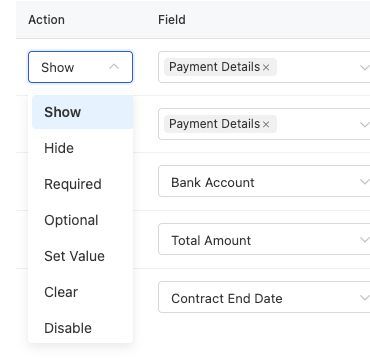
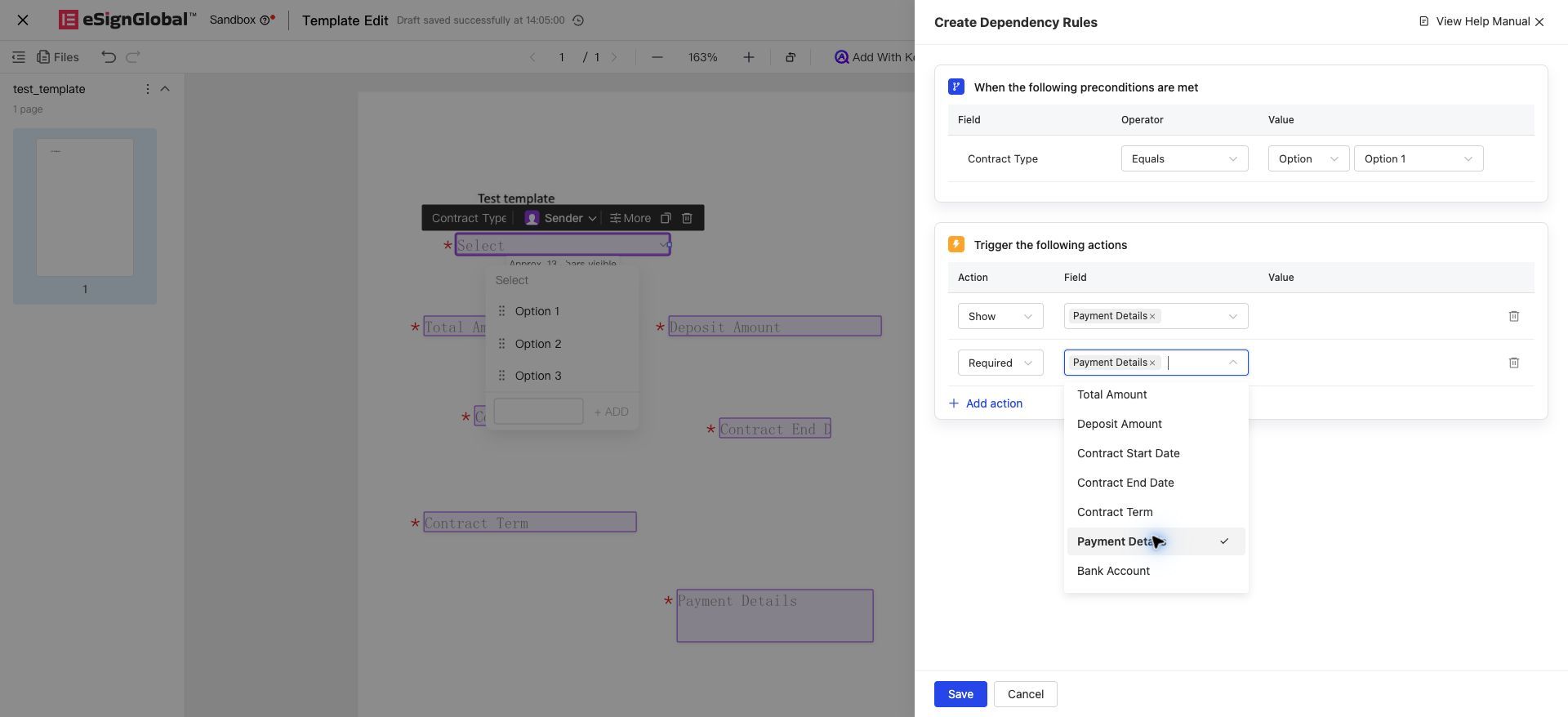
Value sources for the Assign action (the options in the value dropdown vary depending on the target control type):
-
Custom / Option Value: When the target is a number, single-line text, multi-line text, etc., the value dropdown displays “Custom”. You can manually enter a value, which will automatically fill into the target control when the trigger condition is met. The input validation rules are consistent with the control’s default values. When the target is a number control, it will be automatically formatted according to the target control’s decimal places and thousand separator format (e.g., entering 3.14159 with a target of 2 decimal places results in 3.14). When the target is a radio button, checkbox group, dropdown, or check box, the value dropdown displays “Option Value”, allowing you to select from the options defined within the target control itself. For check boxes, the option value is based on the control’s own default setting, and only “Checked” (i.e., selected) can be configured. To reset a check box to an unchecked state, please use the “Clear” action.
-
Control Value (Reference another control): References the current value of another control under the same document and participant. The types of controls that can be referenced must be compatible with the target control: Text types (single-line text, multi-line text) are mutually compatible, and numbers are only compatible with numbers. Radio buttons, dropdowns, and check boxes do not support control value references when used as assignment targets. For cross-control mapping, please configure multiple rules via option values. If the value of the referenced control is empty, the assignment will not take effect.
-
Calculation Expression (Date Calculation): Only available when the target control is a date control (this option does not appear in the value dropdown for non-date targets). It automatically calculates the target date based on “Start Date ± Days” (see 2.2.3 for details).
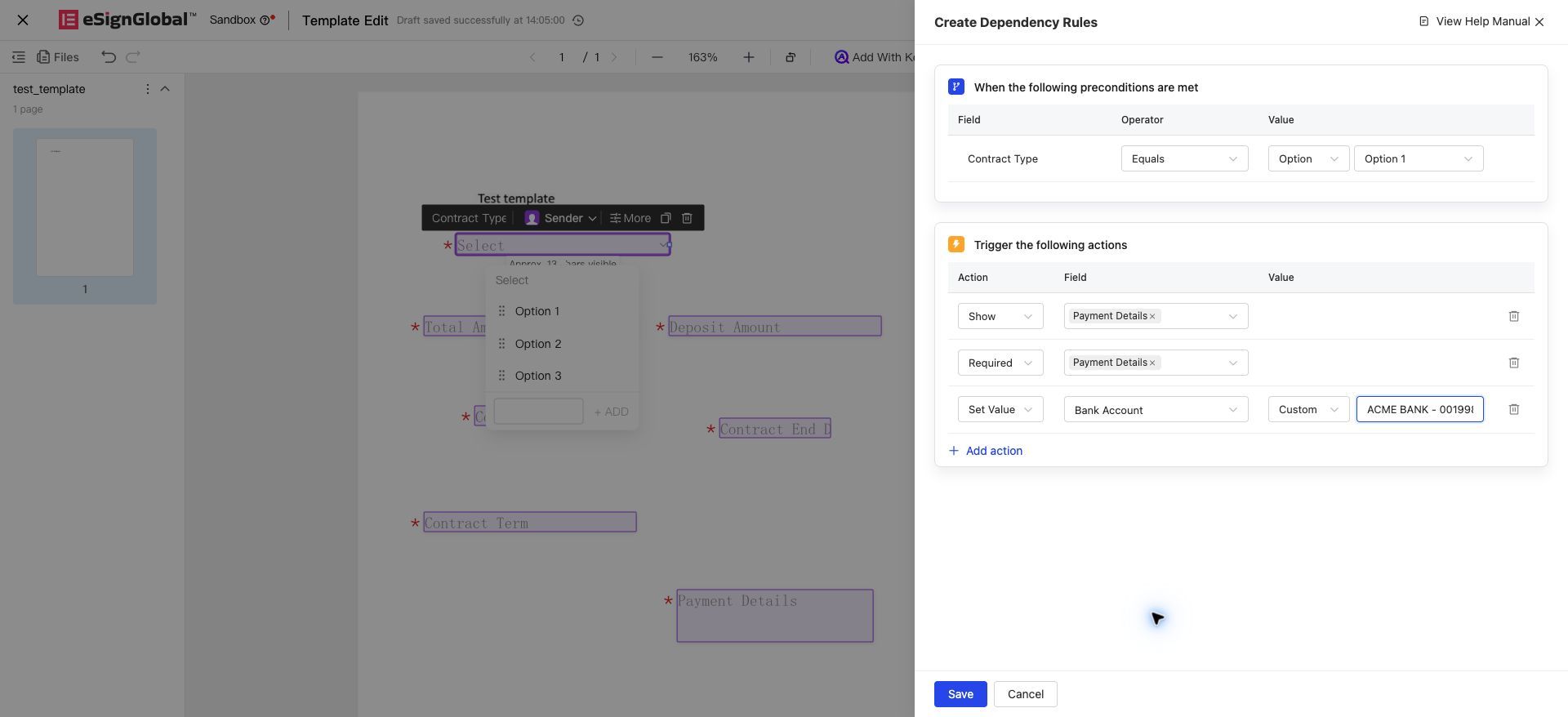
2.2.3 Date Calculation Assignment Instructions
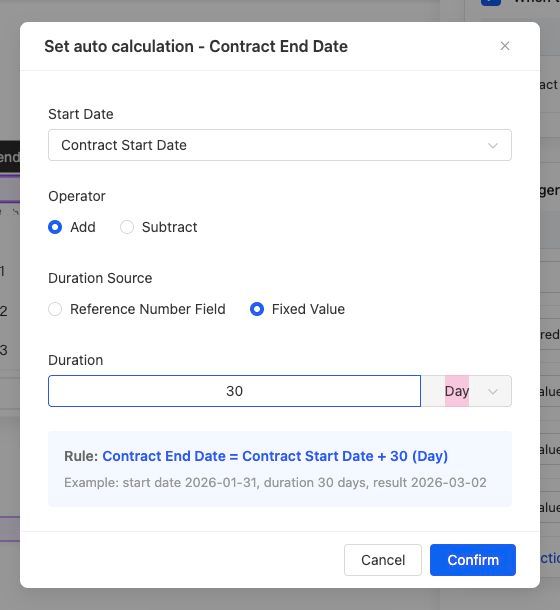
When the assignment target is a date control, select “Calculation Expression” as the value source. Click “Settings” to open the automatic calculation configuration dialog, where you can configure:
-
Start Date: Select a date control under the same document and participant as the calculation baseline
-
Calculation Operator: Add (future date) / Subtract (past date)
-
Duration Source: Reference a number control (supports formula calculation result controls) or a fixed value (positive integer from 1 to 36500)
-
Duration Unit: Day / Month / Year, default is Day
Conversion rules for date calculations:
| Unit | Calculation Rule |
|---|---|
| Day | Directly add/subtract N days from the start date |
| Month (calendar month) | Add/subtract N months to/from the start date, then take the same day in the target month; if the target month does not have that day (e.g., Jan 31 + 1 month), take the last day of the target month |
| Year (calendar year) | Add/subtract N years to/from the start date, then take the same month and day; if it is Feb 29 and the target year is not a leap year, fall back to Feb 28 |
Include Start Date: Can be checked when the duration unit is month or year. When checked, the calculation result is the expiration date (calendar month/year result minus 1 day), applicable to scenarios such as contract expiration dates. For example, starting from 2026-01-15 for 1 month with “Include Start Date” checked yields 2026-02-14. If the calendar month/year result itself triggers end-of-month or leap-year fallback (see table above), no further subtraction of 1 day is applied to the fallback result.
If the numeric control value for duration contains decimals, it will first be rounded to the nearest integer before participating in the calculation.
2.3 Scope of Controls Supported by Linkage Rules
Controls supported as trigger conditions (7 types): Single-line text, number, multi-line text, radio button, dropdown selection, checkbox, date
Scope of linkage result controls (by action):
| Action | Controls that can serve as targets |
|---|---|
| Show / Hide / Disable | All controls except contract clauses, contract numbers, and dynamic tables |
| Required / Not required | All controls (including those linked to data sources and those calculated via formulas) |
| Assign / Clear | Single-line text, multi-line text, number, radio button, dropdown, checkbox, date (7 types); controls linked to data sources, calculated via formulas, or verified via real-name authentication cannot serve as assign/clear targets |
2.4 Conflict Rule Validation Instructions
In a single contract document, if multiple linkage rules are configured, conflicts may arise between rules, leading to unexpected results. To prevent configuration errors, we have implemented validation prompts. When you encounter the following conflict warnings, you can adjust the rule configurations according to the guidance to align with the intended logic and achieve standardized content entry.
Within a single rule, the following configurations constitute rule conflicts and will be blocked upon saving:
-
The following pairs of actions are mutually exclusive: Hidden and Required, Hidden and Visible, Required and Not Required. Under the same trigger condition, a single control is not allowed to execute these actions simultaneously.
-
Configuring both Assign and Clear for the same target control simultaneously (Interception prompt: “Assigning and clearing values for the same target control within the same rule is not allowed”)
-
Configuring multiple Assign actions for the same target control
-
Configuring both Disabled and Required for the same target control simultaneously (Interception prompt: “Configuring Required and Disabled for the same target control within the same rule is not allowed”; once disabled, the control cannot be manually edited. If it is also marked as Required and the value is empty, the signer will be unable to submit)
The following situations are allowed to save, with rules on the signature page executed in order of trigger hit (later triggers override earlier ones):
-
Different rules configuring Assign separately for the same target control
-
Different rules configuring Clear and Assign separately for the same target control
-
It is not recommended to configure two identical rules (Actual test: No interception prompt in the current version; duplicate rules have no additional effect and are executed in the order configured)
3. Signature Page Rule Execution Instructions
Filling and signing are completed on the same signature page, with no separate filling page. When the signer fills in contract content on the PC or H5 signature page, controls with linked rules will display a “Linked Rule” indicator: On the PC side, the indicator is located next to the control name in the right-side Form Filling panel; hovering the mouse over it displays a tooltip listing the trigger conditions and execution results item by item. On the H5 side, the indicator is located next to the control name; tapping it opens a popup displaying the rule instructions. The following examples use the PC English interface.
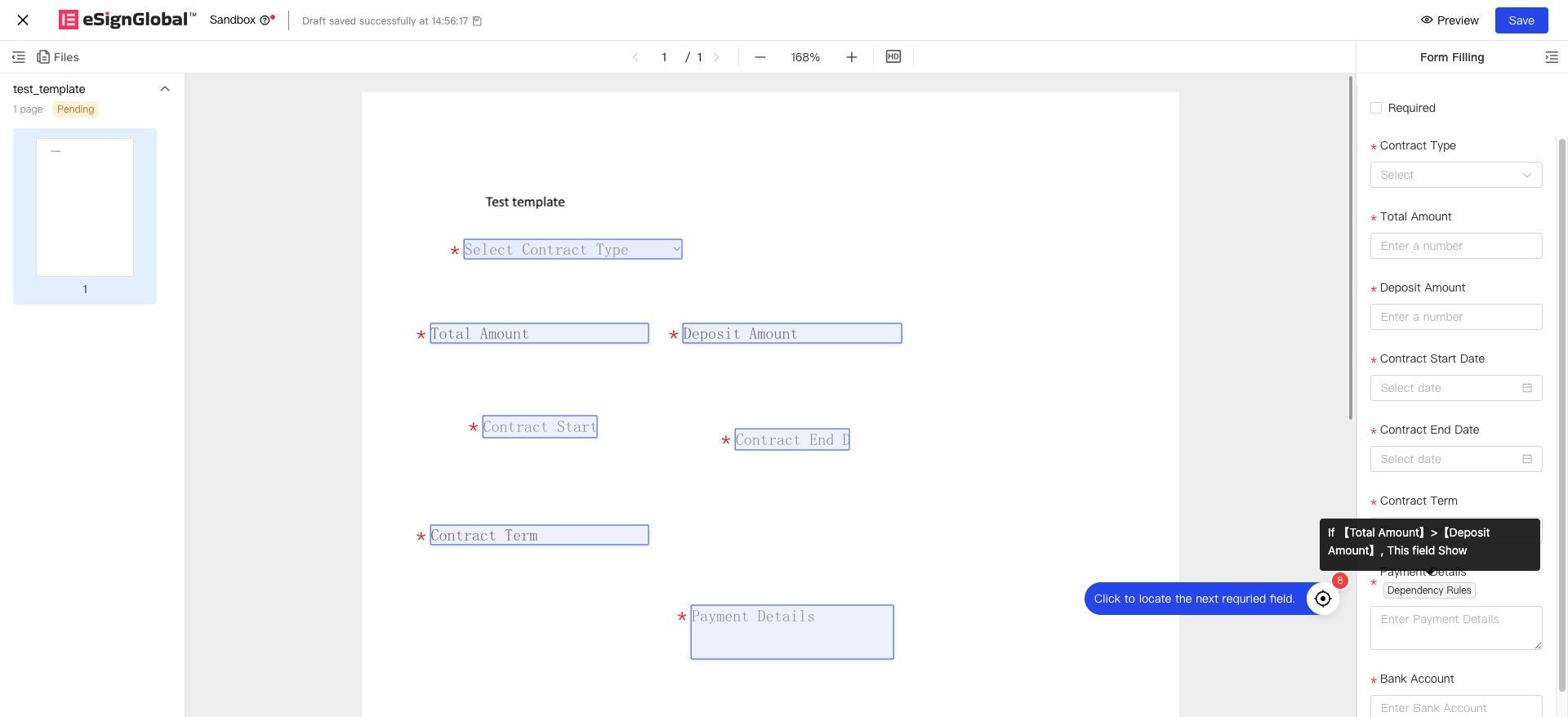
There are two timing points for rule triggering:
-
After entering the signature page, if the trigger control has a default value or pre-filled value, the control linkage will be triggered immediately.
-
After completing the content entry in the trigger control, the control linkage will also be triggered immediately. (If there is existing content, an Assign action will overwrite the original value)
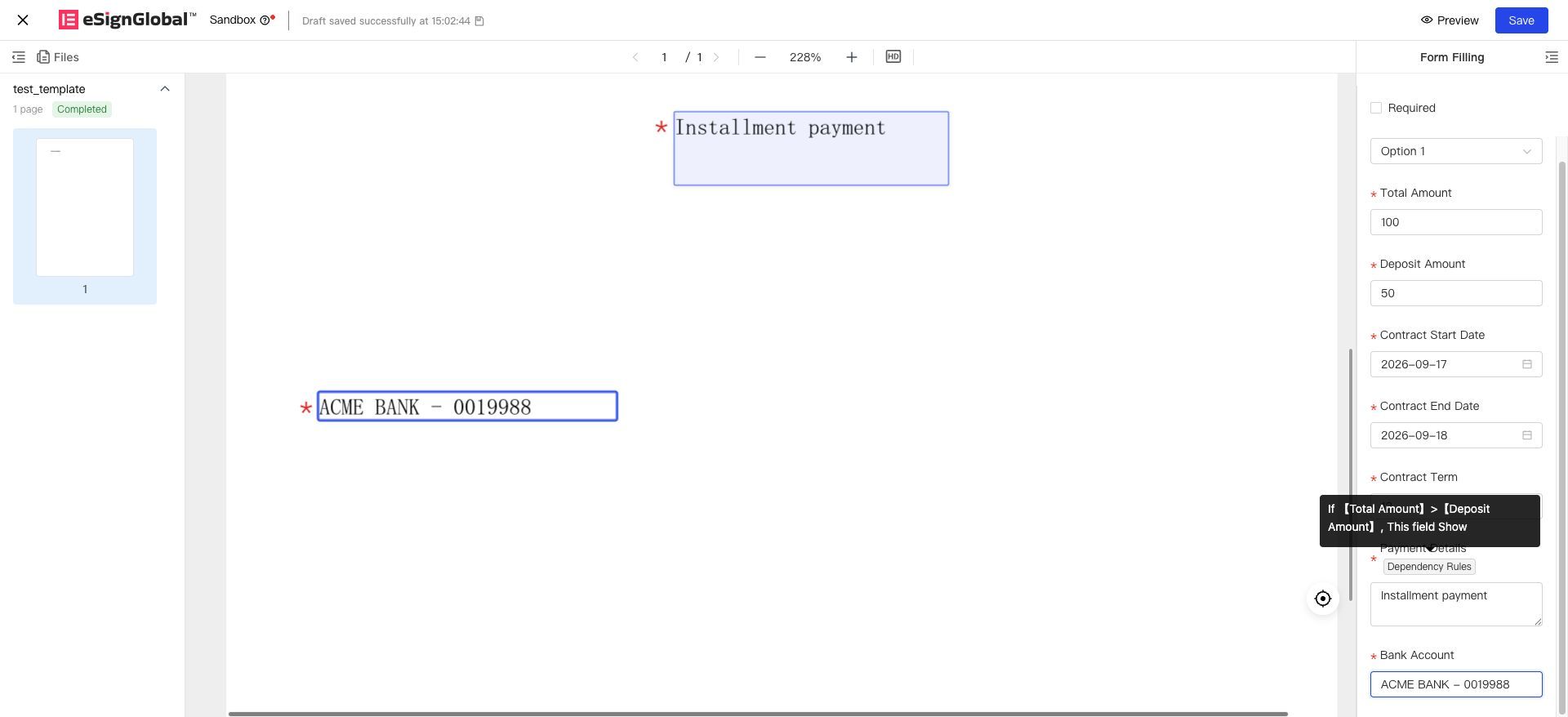
Execution effects of each action on the signature page:
| Action | When condition is met | When condition is no longer met |
|---|---|---|
| Show / Hide / Required / Optional | Execute according to rules | Control reverts to template default settings |
| Assign Value | The target control is automatically filled with the configured value; the signer can still manually modify it | No assignment is performed, and the current value of the target control is neither cleared nor restored |
| Clear | The value of the target control is set to empty, displaying as if it has never been filled | No clearing is performed; the current value is retained, and no automatic restoration to default occurs |
| Disable | The target control becomes grayed out and non-editable, while existing values are displayed normally | The control automatically reverts to an editable state, and the current value remains unchanged |
Additional Notes:
-
Interaction between Assignment and Other Capabilities: After assigning a value to a control, if that control serves as an input for a formula calculation, the formula will immediately recalculate based on the new value.
-
Combination of Clear and Required: When combined with the required setting after clearing, the control becomes empty and mandatory; the signer must manually enter data before submission.
-
Stacking Clear and Disable: When triggered under the same conditions, clear is applied first, then disable, resulting in an empty and non-editable state.
-
Disable Does Not Affect System Writes: Disabling only prevents manual editing by the signer; linked assignments, data source population, formula calculations, and OpenAPI writes can still successfully write data to disabled controls.
-
Disable and Visibility Are Independent: When a control is hidden, its disabled state is preserved. Upon re-displaying, the disabled state is determined by the current conditions.
-
PDF Output for Cleared/Disabled Controls: Cleared controls output as empty values in the contract document; disabled controls output their values normally without any grayed-out effect.
After submitting the signed content, hidden controls will not be rendered in the contract document and will not undergo required field validation. However, if there is entered data, it is still retained and can be queried.
4. Frequently Asked Questions
Q1: During template configuration, I only set up a linkage rule on one control, but why do other controls have the same rule?
A: This is because these controls are merged for filling. When multiple controls are merged, they share the same input value on the signing page and trigger the same linkage rules. During configuration, pay attention to whether multiple controls hit the merge-filling condition. Check whether the triggered rules meet expectations when new controls join the merge-filling group or historical controls leave it.
Q2: Why do linkage rules behave abnormally when the name of an option in a dropdown control changes during template configuration?
A: When a rule is triggered by setting a dropdown control’s value to equal a specific option, and the option’s name is later adjusted, the options within the linkage rule will not be automatically updated. You need to re-select them manually.
Q3: Why does the execution result on the signature page not match the configured rules?
A: This is because there are several principles governing the execution of control linkage rules:
-
First, when the trigger condition is not met, visibility/t-required actions revert to the default settings defined in the template.
-
Second, the execution priority of linkage rules follows a specific order. When a control is subject to multiple triggering rules, the rule executed later (i.e., appearing later in the sequence) has higher priority.
-
Third, value assignment/clearing actions do not actively adjust the current value of the target control when conditions are not met (they do not clear or restore default values); disable actions restore editability when conditions are not met, but the value remains unchanged.
For example: If [Responsible City] equals [Service Region], then [Liability for Breach Explanation] is displayed. Does this mean that when these two controls’ values are unequal, [Liability for Breach Explanation] should be hidden? — Not necessarily. According to the implementation principle, when the condition is not met, the control reverts to its default setting in the template. Since the control is set to visible by default in the template configuration, it remains visible rather than automatically switching to its opposite state.
Solution: If strict negation logic is required, you can add another configuration in the linkage rule: “When [Responsible City] does not equal [Service Region], hide [Liability for Breach Explanation].”
Q4: Why do linkage rules not take effect when pre-filling content in an Excel spreadsheet using batch initiation via templates?
A: Because OpenAPI fill/pre-fill currently does not support control linkage rules; linkage rules are only triggered when filling in data on the signature page. For scenarios involving batch initiation or OpenAPI fill/pre-fill, please ensure the accuracy of the filled content yourself.
Q5: After a value is assigned via linkage, can the signatory still modify the assigned control?
A: Yes. Assignment merely auto-fills a value; the signatory can still manually modify it. If you wish to lock the control and prevent modification after assignment, please configure a “disable” action for that control within the same rule or another rule.
Q6: Why can’t I select ‘Control Value’ as the source when assigning values to single-choice, dropdown, or checkbox controls?
A: The option sets for different controls may not be consistent, so directly referencing option values often leads to matching failures. When these three types of controls serve as assignment targets, they only support ‘Option Value’ as the source. To achieve mapping such as ‘Source Control selects A → Target Control selects B’, please configure multiple rules based on option values. For example: When the source single-choice control is ‘Category A’, configure a rule to assign the target single-choice control the option value ‘Level One’. Special Note: For checkbox controls, the option value can only be configured as ‘Checked’ (selected). To uncheck the target checkbox control, please use the ‘Clear’ action.
Q7: How are date calculations handled when selecting “month” or “year” as the unit, especially at month-end or during leap years?
A: When calculating by month, use the same day of the target month; if that day does not exist in the target month, use the last day of the target month (e.g., January 31 + 1 month = February 28/29). When calculating by year, use the same month and day in the target year; if February 29 falls in a non-leap year, it rolls back to February 28. If “Include Start Date” is checked, the result is the expiration date (subtract 1 day); however, if a month-end or leap-year rollback has already occurred, no further subtraction is applied to the rolled-back result.


