
'%3e%3cpath%20fill-rule='evenodd'%20clip-rule='evenodd'%20d='M6.99935%2012.8327C10.221%2012.8327%2012.8327%2010.221%2012.8327%206.99935C12.8327%203.77769%2010.221%201.16602%206.99935%201.16602C3.77769%201.16602%201.16602%203.77769%201.16602%206.99935C1.16602%2010.221%203.77769%2012.8327%206.99935%2012.8327Z'%20stroke='%23666666'%20stroke-linecap='round'%20stroke-linejoin='round'/%3e%3cpath%20d='M1.16602%207H12.8327'%20stroke='%23666666'%20stroke-linecap='round'%20stroke-linejoin='round'/%3e%3cpath%20fill-rule='evenodd'%20clip-rule='evenodd'%20d='M6.99935%2012.8327C8.28802%2012.8327%209.33268%2010.221%209.33268%206.99935C9.33268%203.77769%208.28802%201.16602%206.99935%201.16602C5.71068%201.16602%204.66602%203.77769%204.66602%206.99935C4.66602%2010.221%205.71068%2012.8327%206.99935%2012.8327Z'%20stroke='%23666666'%20stroke-linecap='round'%20stroke-linejoin='round'/%3e%3cpath%20d='M2.875%202.95898C3.93063%204.01461%205.38896%204.66754%206.99978%204.66754C8.61062%204.66754%2010.069%204.01461%2011.1246%202.95898'%20stroke='%23666666'%20stroke-linecap='round'%20stroke-linejoin='round'/%3e%3cpath%20d='M11.1246%2011.0425C10.069%209.98691%208.61062%209.33398%206.99978%209.33398C5.38896%209.33398%203.93063%209.98691%202.875%2011.0425'%20stroke='%23666666'%20stroke-linecap='round'%20stroke-linejoin='round'/%3e%3c/g%3e%3cdefs%3e%3cclipPath%20id='clip0_1267_9109'%3e%3crect%20width='14'%20height='14'%20fill='white'/%3e%3c/clipPath%3e%3c/defs%3e%3c/svg%3e)


 Servicezentrum
Steuerungsregeln für die Kopplung von Steuerelementen festlegen
Dieser Artikel dient der Einführung der Funktionen zur Verknüpfungsregelung von Vorlagensteuerelementen.
Besondere Hinweise: (1) Diese Funktion wird nur in der Professional Edition und höheren Versionen unterstützt. (2) Die Verknüpfungsregelung von Vorlagensteuerelementen ist nur für die Eingabe auf der Unterschriftsseite verfügbar; die OpenAPI-Eingabe/Vorbelegung wird vorläufig nicht unterstützt. (3) Die Verknüpfungsregeln unterstützen sieben Ausführungsaktionen: Anzeigen, Ausblenden, Pflichtfeld, Nicht-Pflichtfeld, Zuweisen, Leeren und Deaktivieren.
1. Funktionsübersicht
1.1 Funktionsbeschreibung
Auf der Seite zur Einstellung von Vertragsvorlagen können Sie für bestimmte Eingabesteuerelemente Verknüpfungsregeln (Auslösebedingungen und Ausführungsaaktionen) festlegen, um logische Zusammenhänge zwischen mehreren Eingabefeldern herzustellen. Durch diese Konfigurationsmöglichkeit kann eine Bedingung eines Steuerelements mehrere andere Steuerelemente auslösen, folgende Aktionen auszuführen:
| Aktion | Wirkung |
|---|---|
| Anzeigen / Ausblenden | Steuert, ob das Zielsteuerelement auf der Unterschriftsseite sichtbar ist oder nicht. |
| Pflichtfeld / Nicht-Pflichtfeld | Wechselt den Pflichtstatus des Zielsteuerelements. |
| Zuweisen | Füllt das Zielsteuerelement automatisch mit benutzerdefinierten Werten/Optionswerten, Werten anderer Steuerelemente oder Ergebnissen von Datumsberechnungen. |
| Leeren | Setzt den aktuellen Wert des Zielsteuerelements zurück. |
| Deaktivieren | Das Zielsteuerelement wird ausgegraut und kann nicht manuell bearbeitet werden (die Befüllung und Überschreibung über Zuweisungsmechanismen bleibt jedoch weiterhin möglich). |
1.2 Anwendungsszenarien
Geeignet für allgemeine Basis-Konfigurationen von Verträgen sowie für Kernverträge im Bereich Dienstleistungen, Beschaffung und Vertrieb. Basierend auf den Eingabergebnissen von Steuerelementen wie Optionsfelder, Mehrfachauswahl, Dropdown-Menüs und Datumsauswahlen können andere Eingabefelder dynamisch in ihrer Sichtbarkeit (Anzeigen/Ausblenden) oder ihrem Pflichtstatus gesteuert oder automatisch durch Zuweisung, Leeren oder Deaktivierung bearbeitet werden. Dies vereinfacht den Ausfüllprozess, reduziert ungültige Eingaben, stellt sicher, dass kritische Daten nicht versehentlich geändert werden, und steigert so Effizienz und Standardisierung beim Ausfüllen von Verträgen.
Beispiel:
-
Sichtbarkeits-/Pflichtfeld-Verknüpfung: Wenn im Vertrag „Ratenzahlung“ ausgewählt wird, werden die Eingabefelder wie „Ratenbetrag“ und „Zahlungsdatum“ automatisch angezeigt und als Pflichtfelder markiert; bei Auswahl von „Einmalzahlung“ werden diese Felder ausgeblendet, um unnötige Inhalte im Vertrag zu vermeiden.
-
Verknüpfung der Vertragsparteien: Wählen Sie „Unternehmensvertrag“, um die einheitliche Sozialversicherungsnummer und die Informationen des gesetzlichen Vertreters anzuzeigen und als Pflichtfelder zu markieren; wählen Sie „Privatperson“ um auf Ausweisnummer und Anschrift umzuschalten.
-
Automatische Wertzuweisung: Wenn bei „Rechnungstyp“ „Spezielle Mehrwertsteuer-Rechnung“ ausgewählt wird, werden „Bankkonto“ und „Kontonummer“ automatisch in die entsprechenden Felder eingetragen, sodass keine erneute Eingabe erforderlich ist.
-
Datumsverknüpfungsberechnung: Nach der Eingabe von „Vertragsstartdatum“ und „Vertragslaufzeit“ wird das „Vertragsenddatum“ automatisch berechnet, sodass keine manuelle Berechnung der Tage erforderlich ist.
-
Leeren + Pflichtfeld-Verknüpfung: Steuerelemente sind mit Standardwerten vorbelegt. In bestimmten Geschäftsfällen muss der Unterzeichner jedoch selbstständig eingeben. Dazu können Sie den Standardwert zunächst löschen und dann als Pflichtfeld festlegen, um eine neue Eingabe zu erzwingen.
-
Wertzuweisung + Deaktivierung-Verknüpfung: Nach der automatischen Wertzuweisung wird das Steuerelement gesperrt, um zu verhindern, dass der Unterzeichner es versehentlich ändert und so Dateninkonsistenzen verursacht.
2. Erläuterung zur Konfigurationsweise
2.1 Einstiegspunkt zur Konfiguration der Verknüpfungsregeln für Steuerelemente
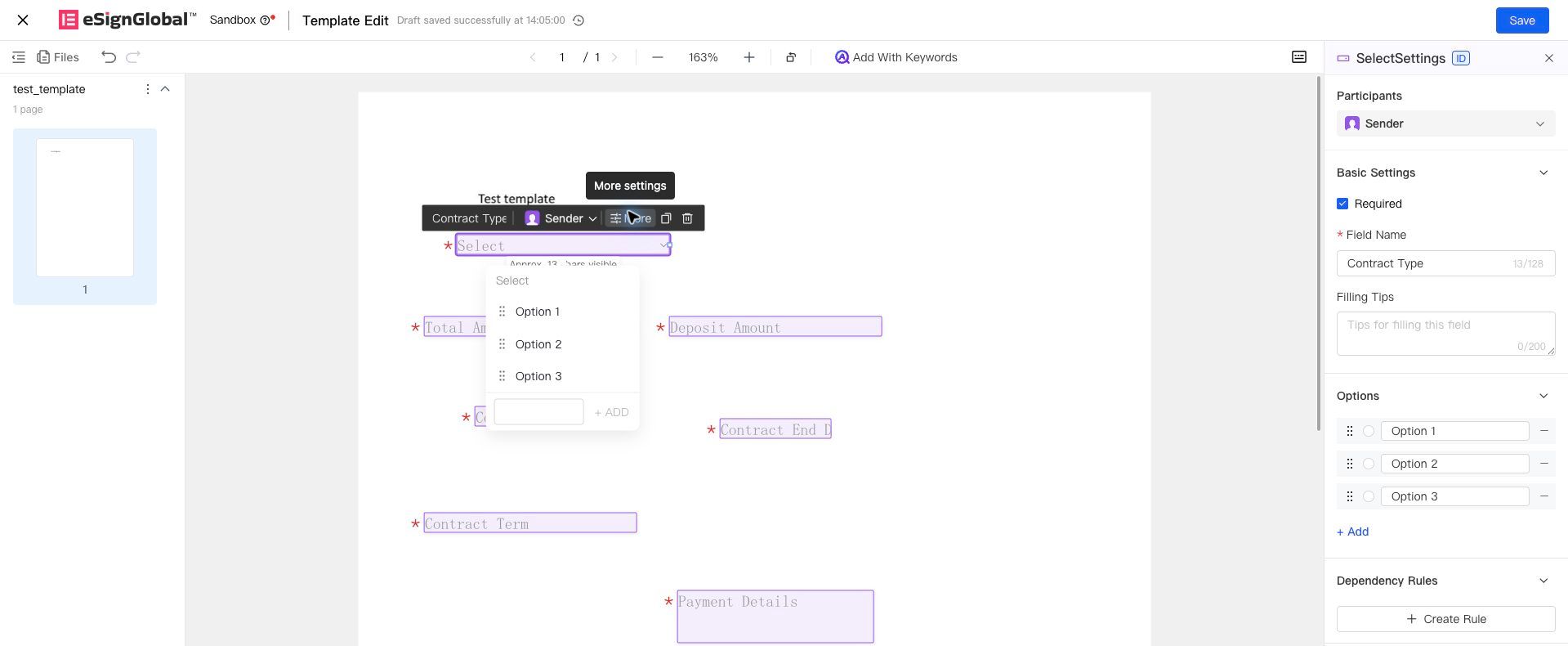
Wenn Sie basierend auf dem Wert eines bestimmten Eingabefeldes den Status anderer Eingabefelder ändern möchten, müssen Sie eine Regel im Bereich der Steuerelementattribute für die Regel „Trigger“ erstellen.
Klicken Sie auf das Steuerelement, um das rechte Attributpanel aufzurufen, und klicken Sie auf „Regel erstellen“, um zur Seite zur Bearbeitung der Regel zu gelangen.
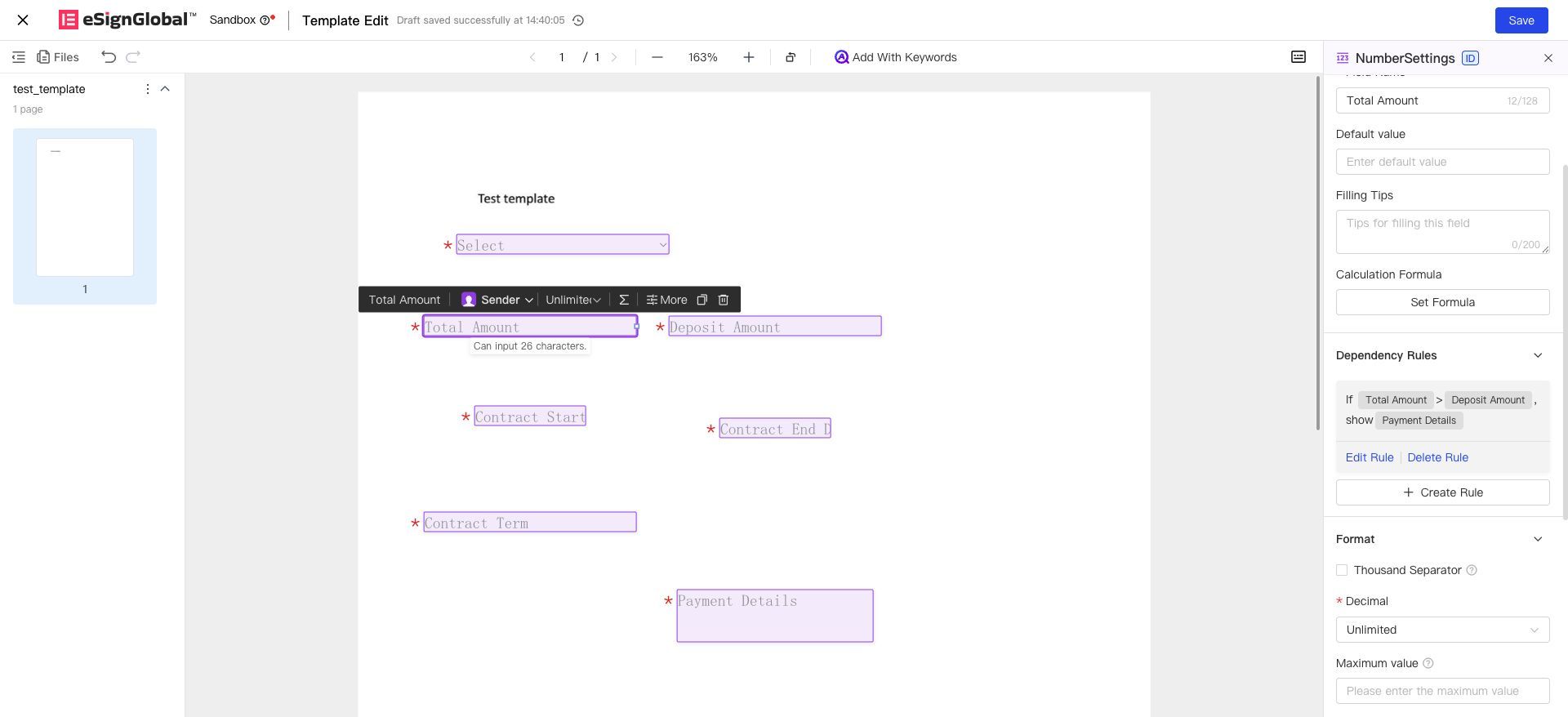
Nachdem die Regel konfiguriert wurde, können Sie im rechten Attributpanel die spezifische Regel einsehen. Von hier aus können Sie auch die Regel bearbeiten oder löschen.
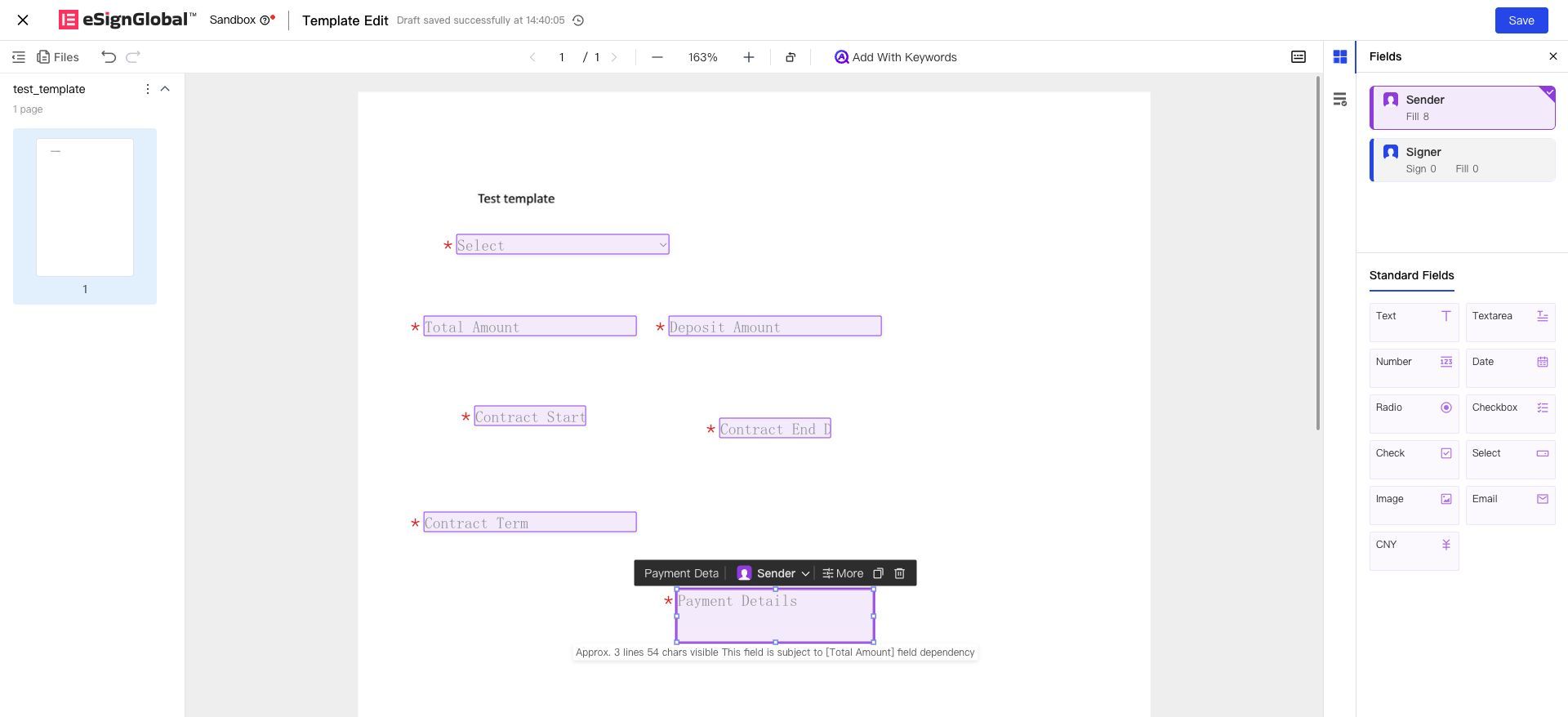
Steuerelemente, die durch Verknüpfungsregeln gesteuert werden, zeigen nach dem Anklicken eine Hinweismeldung darüber an, welche Steuerelemente sie beeinflussen.
2.2 Konfigurationsweise der Verknüpfungsregeln für Steuerelemente
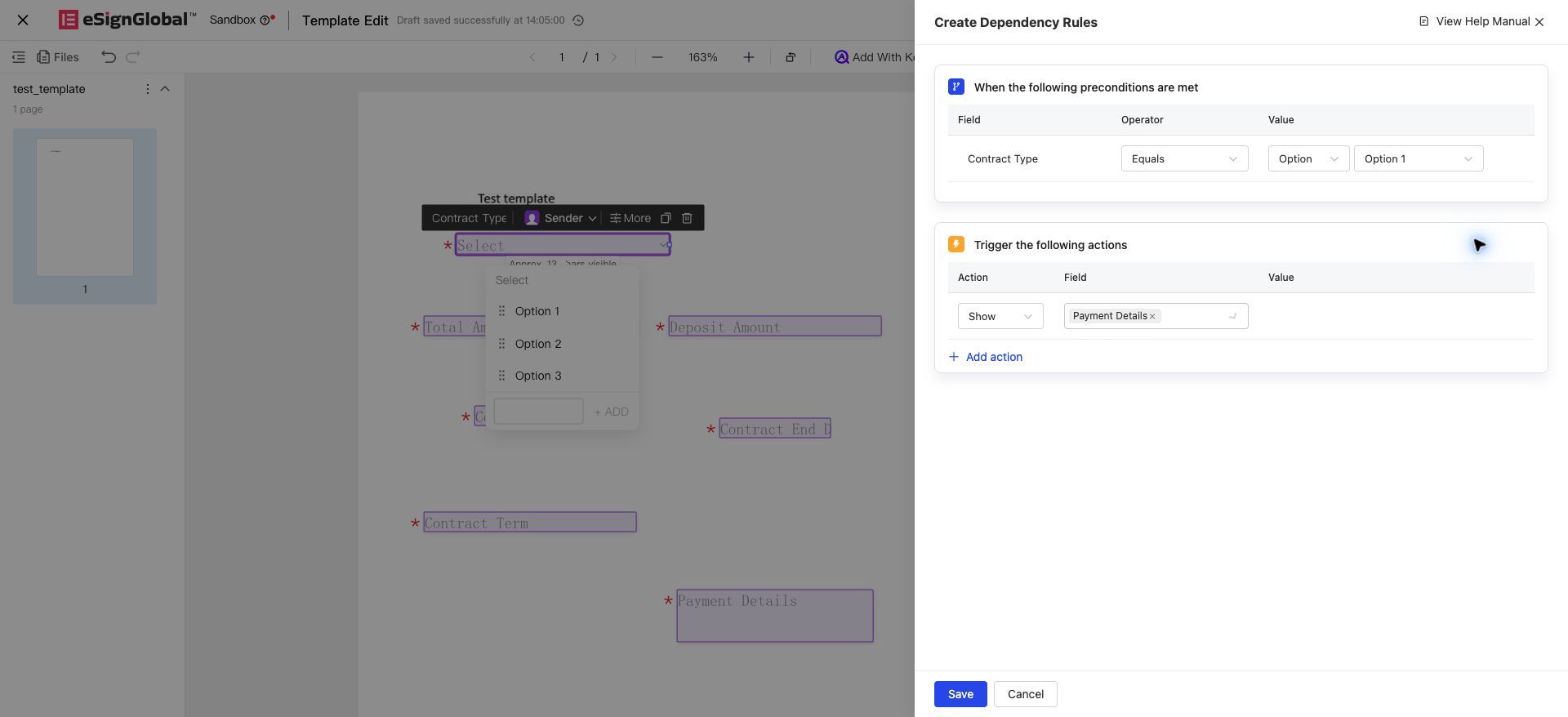
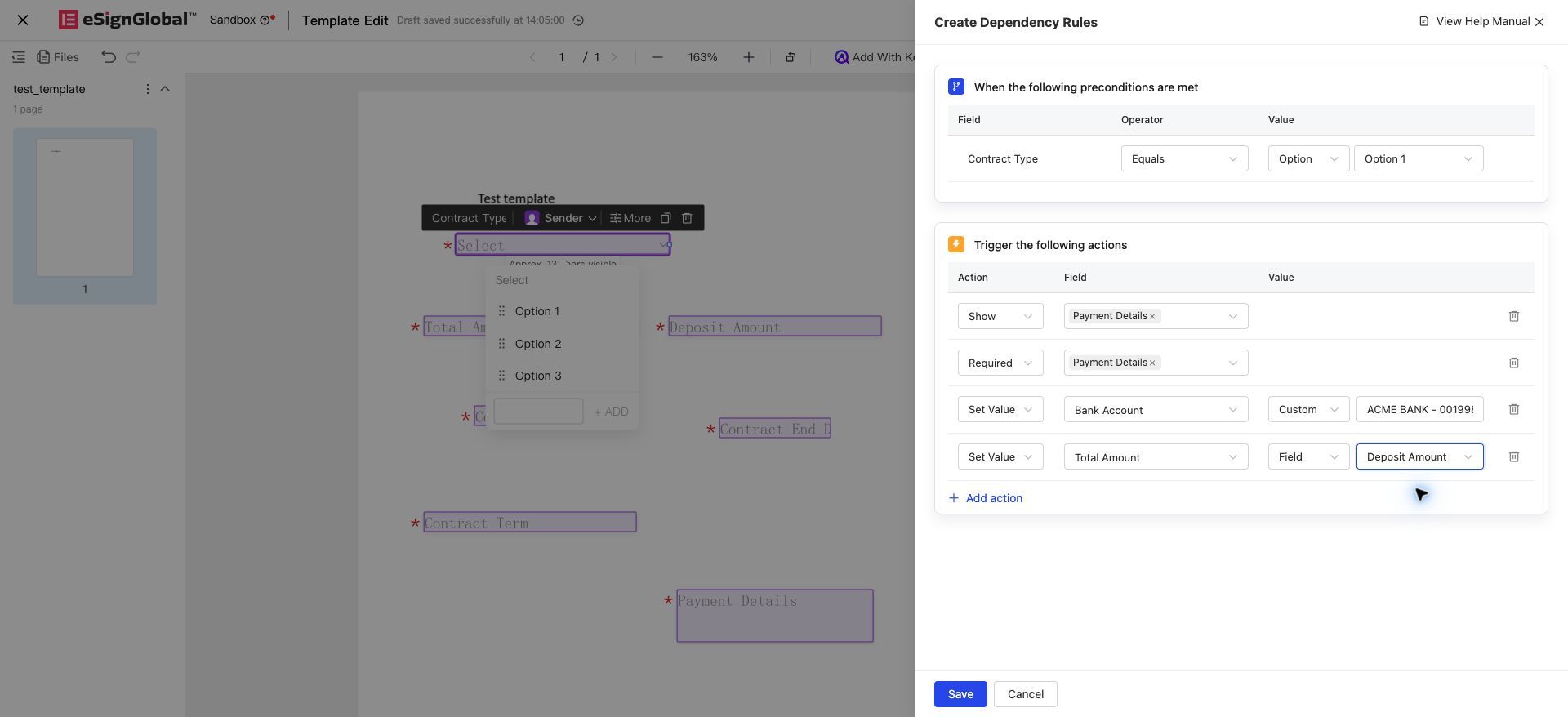
Auf der Seite zur Konfiguration der Verknüpfungsregeln können Sie die Triggerbedingungen und Verknüpfungsergebnisse separat konfigurieren. Da der Einstiegspunkt zur Konfiguration der Regel sich in den Attributen des Steuerelements für die Regel „Trigger“ befindet, ist das Steuerelement für die Triggerbedingung das aktuelle Steuerelement selbst (mehrere Steuerelemente können vorübergehend nicht gemeinsam als Triggerregel dienen). Von diesem Steuerelement aus können mehrere andere Steuerelemente angesteuert werden, die jeweils unterschiedliche Ergebnisaktionen ausführen.
2.2.1 Konfiguration der Triggerbedingungen
Die Triggerbedingungen werden im Bereich [„Wenn folgende Voraussetzungen erfüllt sind“] festgelegt:
-
Steuerelement: Das auslösende Steuerelement. Wenn der Wert dieses Steuerelements eine bestimmte Bedingung erfüllt, wird die Verknüpfung ausgelöst.
-
Operator: Die logische Berechnungsbedingung für den Wert dieses Steuerelements. Zum Beispiel können Sie „gleich“, „ungleich“, „ist leer“, „ist nicht leer“ usw. auswählen. Je nach Typ des Steuerelements stehen unterschiedliche Operatoren zur Verfügung.
-
Wert: Der einzugebende Wert für dieses Steuerelement. Dies kann ein konkreter Wert sein oder der Wert eines anderen Steuerelements desselben Typs.
-
Wenn es sich um einen konkreten Wert handelt, wählen Sie zuerst „Optionswert“, und wählen oder geben Sie anschließend den konkreten Wert ein. Bei Dropdown-Optionen, Optionsfeldern oder Mehrfachauswahlen können die konkreten Optionswerte direkt ausgewählt werden. Bei Zahlen, einzeiligen Textfeldern usw. muss der konkrete Wert manuell eingegeben werden.
-
Wenn es sich um den Wert eines anderen Steuerelements desselben Typs handelt, wählen Sie zuerst „Steuerelementwert“, und wählen Sie anschließend ein Steuerelement desselben Typs (hier wird der Datentyp allgemein bezeichnet; der Steuerelementtyp muss nicht vollständig identisch sein). Beispiel: Die Bedingung lautet: Der Wert des Steuerelements „Gesamtvertragssumme“ ist größer als der Wert des Steuerelements „Anzahlungsbetrag“.
-
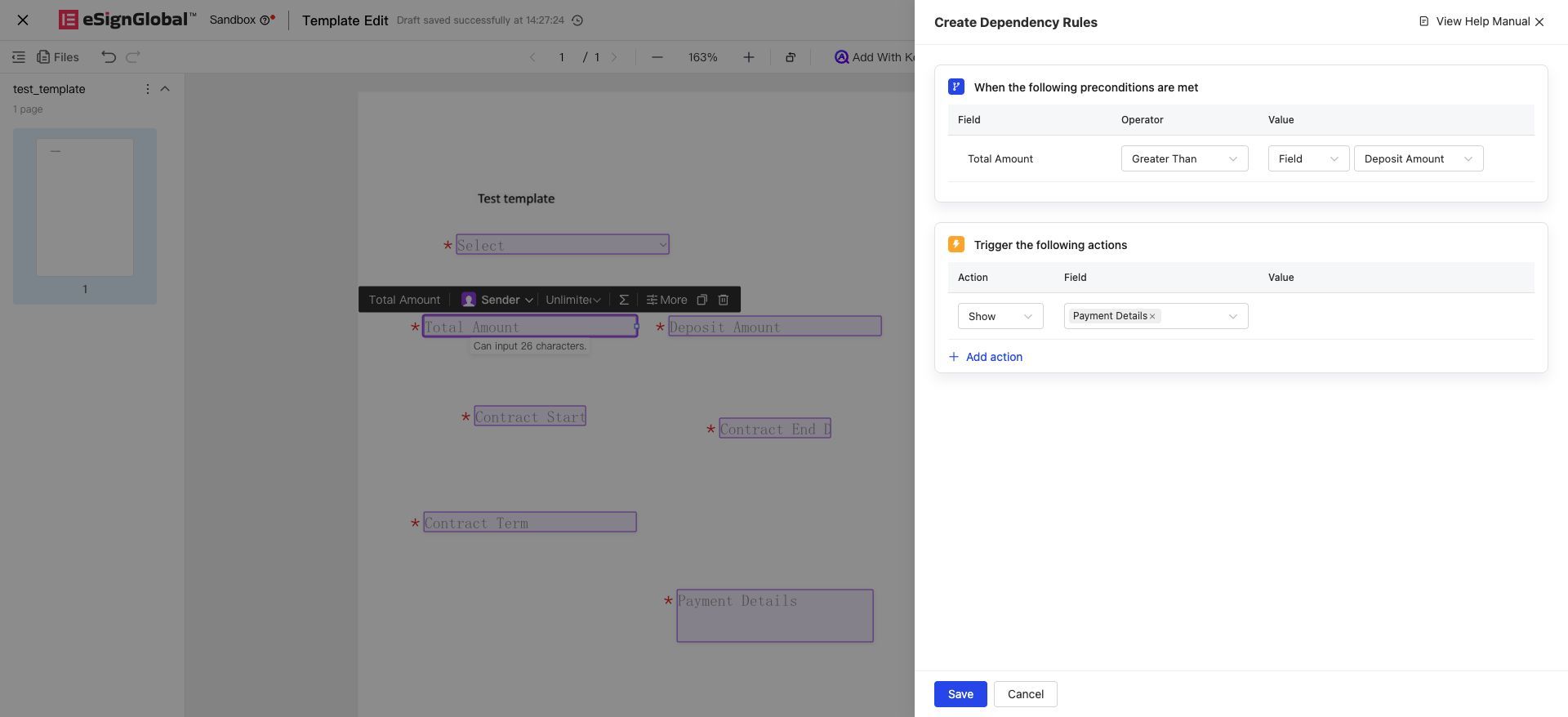
Wenn ein Datumssteuerelement als auslösendes Steuerelement dient, sind folgende Operatoren unterstützt: ist leer, ist nicht leer, gleich, ungleich, größer als, kleiner als, größer oder gleich, kleiner oder gleich. Für den Bedingungswert kann ein festes Datum ausgewählt werden.
2.2.2 Konfiguration der Verknüpfungsergebnisse
Die Verknüpfungsergebnisse werden im Bereich [„Folgende Verknüpfungen ausführen“] konfiguriert:
-
Aktion: Umfasst 7 Arten: Anzeigen, Ausblenden, Pflichtfeld, Nicht-Pflichtfeld, Zuweisen, Leeren, Deaktivieren (in der Reihenfolge der Dropdown-Liste). Es können mehrere Aktionen hinzugefügt werden, um mehrere Aktionen für mehrere Steuerelemente batchweise zu steuern.
-
Steuerelement: Wählen Sie das Steuerelement aus, auf das diese Aktion angewendet werden soll. Mehrere Steuerelemente können ausgewählt werden.
-
Hinweis: Es können nur Steuerelemente ausgewählt werden, die sich beim selben Teilnehmer und in derselben Vertragsdatei wie das auslösende Steuerelement befinden.
-
Hinweis: Bei der Aktion „Zuweisen“ darf nur 1 Zielsteuerelement ausgewählt werden. Wenn mehreren Steuerelementen Werte zugewiesen werden sollen, konfigurieren Sie mehrere Zuweisungsaktionen.
-
Wichtige Punkte zur Konfiguration jeder Aktion:
| Aktion | Wertkonfiguration erforderlich? | Beschreibung |
|---|---|---|
| Anzeigen / Ausblenden / Pflichtfeld / Nicht-Pflichtfeld | Nein | Zielsteuerelement auswählen reicht aus |
| Zuweisen | Ja | Wertquelle auswählen (siehe unten) |
| Leeren | Nein | Nur das Zielsteuerelement auswählen, kein Wert erforderlich |
| Deaktivieren | Nein | Nur das Zielsteuerelement auswählen, kein Wert erforderlich |
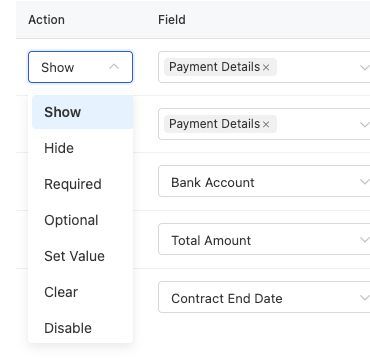
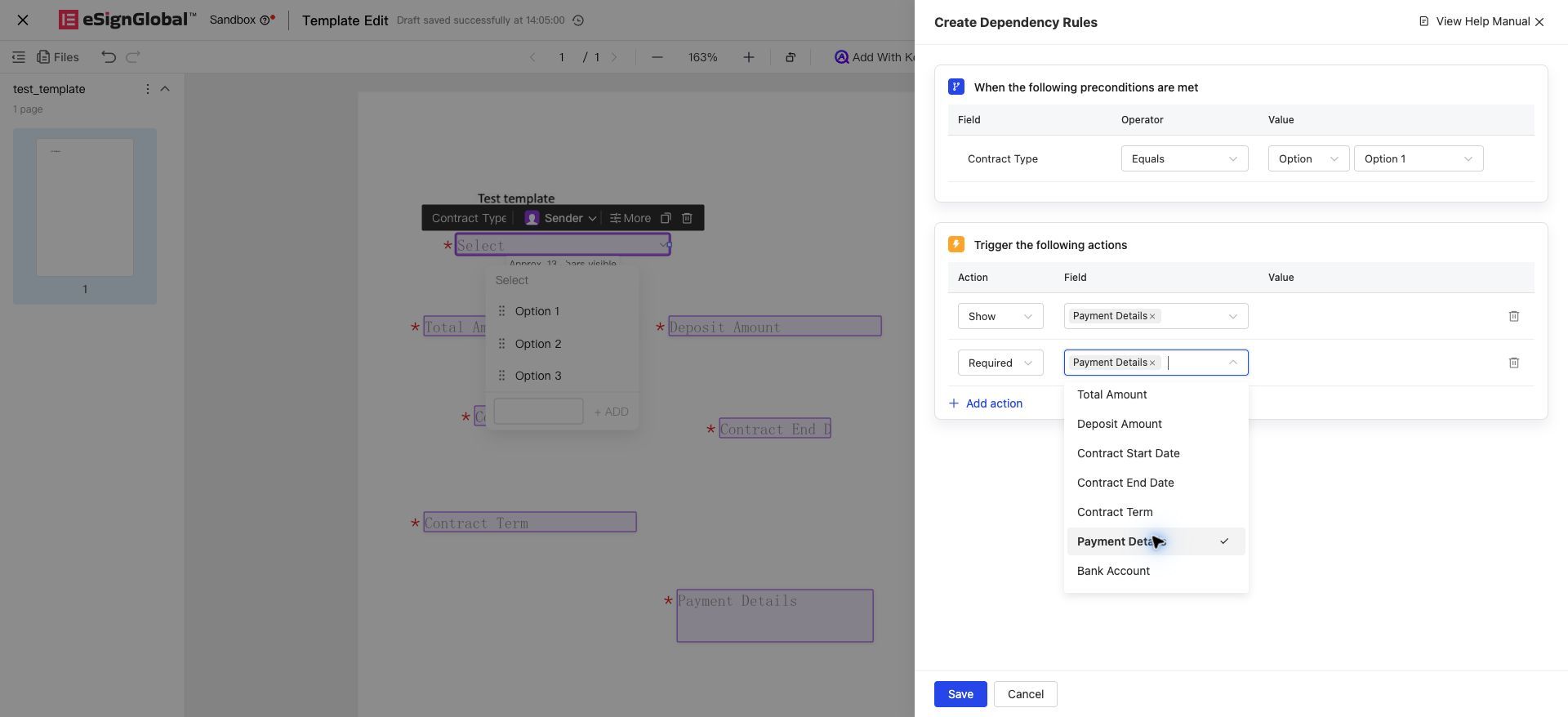
Wertquellen für den Zuweisungsvorgang (die Dropdown-Optionen variieren je nach Typ des Zielsteuerelements):
-
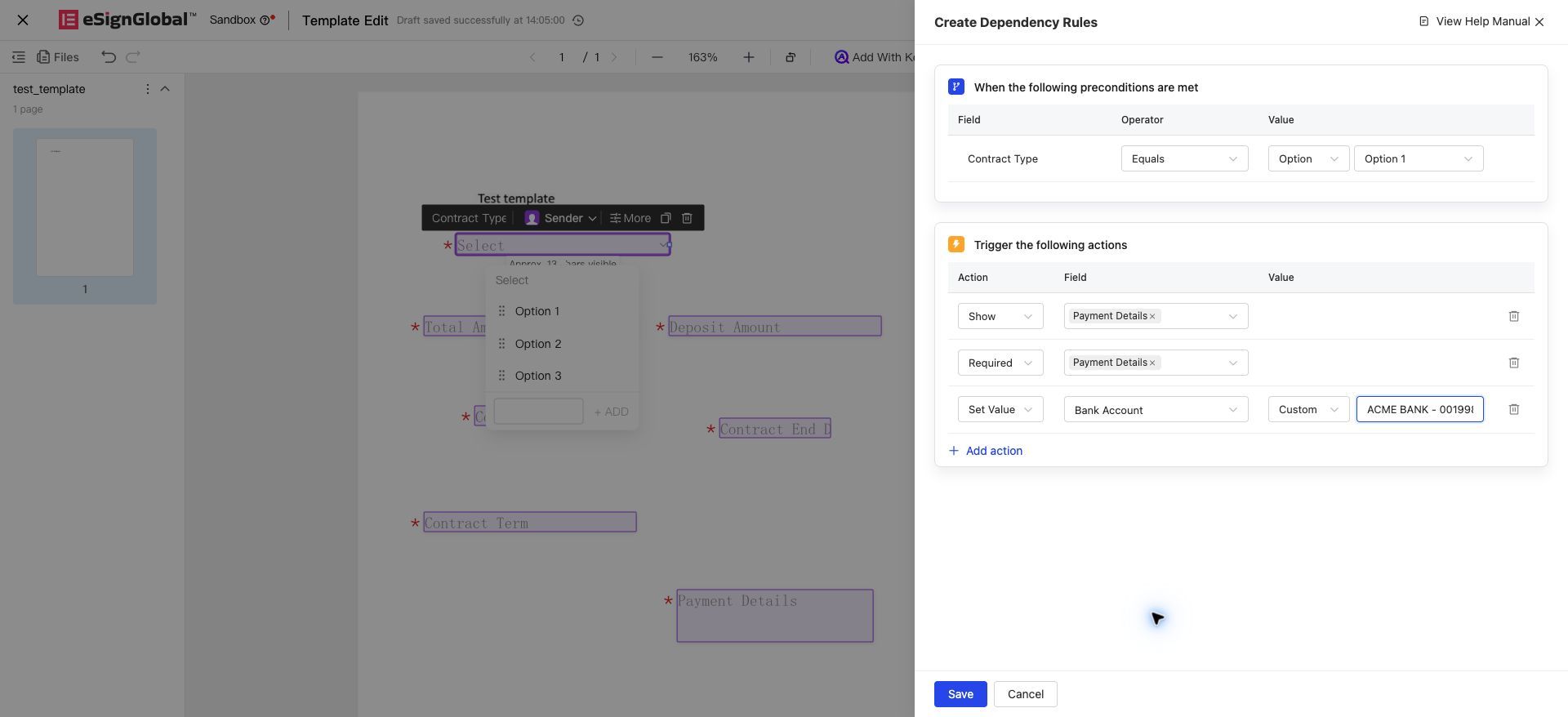
Benutzerdefiniert / Optionswert: Wenn das Ziel ein numerisches Feld, ein Textfeld mit einer Zeile oder ein Textfeld mit mehreren Zeilen ist, wird im Dropdown “Benutzerdefiniert” angezeigt. Geben Sie den Wert manuell ein; bei Erfüllung der Auslösebedingungen wird er automatisch in das Zielsteuerelement eingefügt. Die Eingabevalidierungsregeln entsprechen den Standardwerten des Steuerelements. Bei einem numerischen Zielsteuerelement erfolgt die automatische Formatierung entsprechend der Dezimalstellen und Tausendertrennzeichen des Ziels (z. B. Eingabe von 3,14159 bei 2 Dezimalstellen → 3,14). Wenn das Ziel ein Optionsfeld, eine Mehrfachauswahl, ein Dropdown oder ein Kontrollkästchen ist, wird im Dropdown “Optionswert” angezeigt, und es wird eine Option aus den eigenen Optionen des Zielsteuerelements ausgewählt. Für Kontrollkästchen basieren die Optionswerte auf den Standardwerten des Steuerelements selbst, wobei nur “angekreuzt” (also ausgewählt) konfiguriert werden kann. Um ein Kontrollkästchen wieder in den nicht ausgewählten Zustand zurückzusetzen, verwenden Sie bitte den Vorgang „Leeren“.
-
Steuerwert (Referenz auf ein anderes Steuerelement): Ruft den aktuellen Wert eines anderen Steuerelements im selben Dokument und unter derselben Teilnehmerrolle ab. Die referenzierten Steuerelementtypen müssen mit dem Zielsteuerelement kompatibel sein: Textfelder (einzeilig und mehrzeilig) sind untereinander kompatibel, numerische Felder sind nur mit numerischen Feldern kompatibel. Für die Zuweisung als Ziel sind Single-Choice-, Dropdown- und Kontrollkästchen-Steuerelemente nicht für die Steuerungswertreferenz geeignet. Für die Abbildung zwischen Steuerelementen konfigurieren Sie bitte mehrere Regeln über die Optionswerte. Wenn der Wert des referenzierten Steuerelements leer ist, wird die Zuweisung nicht wirksam.
-
Berechnungsausdruck (Datumsberechnung): Nur auswählbar, wenn das Zielsteuerelement ein Datumsfeld ist (diese Option erscheint nicht im Dropdown für Nicht-Datumsziele). Das ZielDatum wird automatisch gemäß „Startdatum ± Tage“ berechnet (siehe 2.2.3).
2.2.3 Erläuterungen zur Datumsberechnung bei der Zuweisung
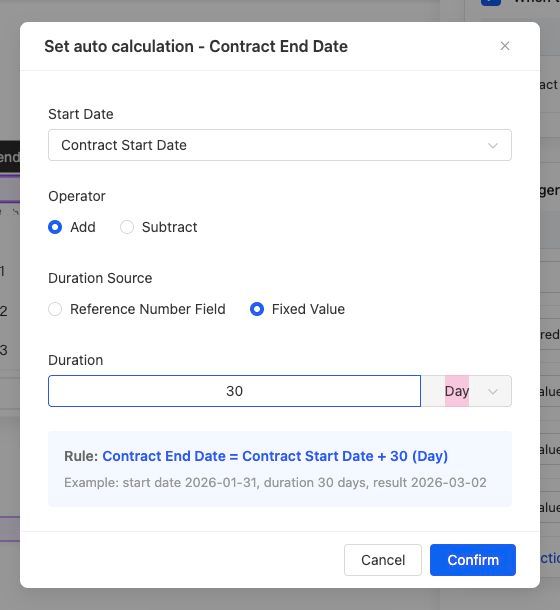
Wenn das Zuweisungsziel ein Datumsfeld ist, wählen Sie bei der Wertquelle „Berechnungsausdruck“, klicken Sie auf „Einstellungen“, um das Popup-Fenster für die automatischen Berechnungseinstellungen zu öffnen, in dem Folgendes konfiguriert werden kann:
-
Startdatum: Wählen Sie ein Datumsfeld desselben Dokuments und derselben Teilnehmerrolle als Berechnungsgrundlage
-
Rechenoperator: Plus (zukünftiges Datum) / Minus (vergangenes Datum)
-
Quellen der Dauer: Referenzieren Sie ein numerisches Steuerelement (inklusive Steuerelemente mit Formelergebnissen) oder einen festen Wert (ganzzahliger positiver Wert zwischen 1 und 36500)
-
Dauer und Einheit: Tag / Monat / Jahr, standardmäßig Tag
Umrechnungsregeln für die Datumsberechnung:
| Einheit | Berechnungsregel |
|---|---|
| Tag | Startdatum direkt um N Tage addieren/subtrahieren |
| Monat (Kalendermonat) | Startdatum um N Monate addieren/subtrahieren und den gleichen Tag im Zielmonat nehmen; falls dieser Tag im Zielmonat nicht existiert (z. B. 31. Januar + 1 Monat), wird der letzte Tag des Zielmonats genommen |
| Jahr (Kalenderjahr) | Startdatum um N Jahre addieren/subtrahieren und denselben Monat und Tag nehmen; falls es sich um den 29. Februar handelt und das Zieljahr kein Schaltjahr ist, wird auf den 28. Februar zurückgegriffen |
Starttag einschließen: Kann aktiviert werden, wenn die Zeiteinheit Monat oder Jahr ist. Nach Aktivierung ist das Berechnungsergebnis der Ablaufdatumstag (Ergebnis aus Kalendermonat/-jahr minus 1 Tag). Dies eignet sich für Szenarien wie Vertragslaufzeiten. Beispiel: Ab dem 15.01.2026 wird 1 Monat berechnet und „Starttag einschließen“ aktiviert, das Ergebnis ist der 14.02.2026. Falls das Ergebnis aus dem Kalendermonat/-jahr bereits eine Rückstufung zum Monatsende oder wegen eines Schaltjahres ausgelöst hat (siehe obige Tabelle), wird vom Rückstufungsergebnis keine weitere Reduktion um 1 Tag vorgenommen.
Wenn der Wert des Zahlensteuerelements für die Dauer Dezimalstellen enthält, wird dieser vor der Berechnung auf die nächste ganze Zahl gerundet.
2.3 Gültigkeitsbereich der Steuerelemente, die von Verknüpfungsregeln unterstützt werden
Steuerelemente, die als Auslösebedingung unterstützt werden (7 Arten): Einzeiliger Text, Zahl, mehrzeiliger Text, Optionsfeld, Dropdown-Auswahl, Kontrollkästchen, Datum
Gültigkeitsbereich der Ziel-Steuerelemente für Verknüpfungsergebnisse (unterschieden nach Aktion):
| Aktion | Als Ziel geeignetes Steuerelement |
|---|---|
| Anzeigen / Ausblenden / Deaktivieren | Alle Steuerelemente außer Vertragsklauseln, Vertragsnummer und dynamische Tabellen |
| Pflichtfeld / Nicht pflichtig | Alle Steuerelemente (einschließlich Steuerelemente mit verknüpften Datenquellen und Formelberechnungen) |
| Zuweisen / Leeren | Einzeiliger Text, mehrzeiliger Text, Zahl, Optionsfeld, Dropdown, Kontrollkästchen, Datum (7 Arten); Steuerelemente mit verknüpften Datenquellen, Formelberechnungen oder Echtzeit-Identitätsprüfung können nicht als Ziel für Zuweisung/Leeren verwendet werden |
2.4 Erläuterung zur Konfliktregelüberprüfung
In einem Vertragsdokument kann es bei der Konfiguration mehrerer Verknüpfungsregeln zu Konflikten zwischen den Regeln kommen, was zu unerwarteten Ergebnissen führen kann. Um Konfigurationsfehler zu vermeiden, wurden einige Validierungshinweise implementiert. Wenn Sie auf folgende Konfliktmeldungen stoßen, können Sie die Regelkonfiguration entsprechend anpassen, um die Eingabelogik einzuhalten und die erwartete normgerechte Inhaltspflege zu erreichen.
Innerhalb derselben Regel gelten die folgenden Konfigurationen als Regelkonflikte und werden beim Speichern blockiert:
-
Die Aktionen „Ausblenden und Pflichtfeld“, „Ausblenden und Anzeigen“ sowie „Pflichtfeld und Nicht-Pflichtfeld“ sind gegenseitig ausschließend. Unter denselben Auslösebedingungen darf dieselbe Steuerelementkomponente diese Aktionen nicht gleichzeitig ausführen.
-
Für dasselbe Ziel-Steuerelement gleichzeitig die Aktionen „Werte zuweisen“ und „Leeren“ konfigurieren (Abfangmeldung: „Innerhalb derselben Regel ist es nicht zulässig, für dasselbe Ziel-Steuerelement gleichzeitig Werte zuzuweisen und das Feld zu leeren.“)
-
Mehrere Aktionen zur Wertezuweisung für dasselbe Ziel-Steuerelement konfigurieren
-
Für dasselbe Ziel-Steuerelement gleichzeitig die Aktionen „Deaktivieren“ und „Pflichtfeld“ konfigurieren (Abfangmeldung: „Innerhalb derselben Regel ist es nicht zulässig, für dasselbe Ziel-Steuerelement gleichzeitig die Pflichtfeld-Eigenschaft und die Deaktivierung zu konfigurieren.“; Nach der Deaktivierung kann das Steuerelement nicht manuell bearbeitet werden. Wenn es gleichzeitig als Pflichtfeld konfiguriert ist und der Wert leer bleibt, kann der Unterzeichner die Dokumente nicht einreichen.)
In den folgenden Fällen ist das Speichern erlaubt; auf der Unterzeichnungsseite werden die Aktionen gemäß der Reihenfolge des Treffens der Auslösebedingungen ausgeführt (spätere Auslösungen überschreiben die Ergebnisse früherer Auslösungen):
-
Verschiedene Regeln weisen demselben Ziel-Steuerelement jeweils Werte zu
-
Verschiedene Regeln leeren bzw. weisen demselben Ziel-Steuerelement jeweils Werte zu
-
Es wird nicht empfohlen, zwei identische Regeln zu konfigurieren (Praktischer Test: In der aktuellen Version gibt es keine Abfangmeldung; doppelte Regeln haben keinen zusätzlichen Effekt und werden in der Reihenfolge ihrer Konfiguration ausgeführt.)
3. Erläuterung zur Ausführung von Regeln auf der Unterzeichnungsseite
Das Ausfüllen und die Unterzeichnung erfolgen auf derselben Unterzeichnungsseite; es gibt keine separate Ausfüllseite. Wenn der Unterzeichner auf der PC- oder H5-Unterzeichnungsseite Vertragsinhalte ausfüllt, zeigen Steuerelementkomponenten mit konfigurierten Verknüpfungsregeln ein Symbol für „Verknüpfungsregel“ an: Auf der PC-Seite befindet sich das Symbol neben dem Namen der Komponente im rechten Panel „Formular ausfüllen“. Beim Darüberfahren mit der Maus erscheint eine Tooltip-Bubble, die die Regelbeschreibung auflistet (Auslösebedingungen und Ausführungsergebnisse werden einzeln aufgelistet). Auf der H5-Seite befindet sich das Symbol neben dem Namen der Komponente; durch Antippen öffnet sich ein Popup-Fenster mit der Regelbeschreibung. Im Folgenden wird am Beispiel der englischen PC-Oberfläche veranschaulicht.
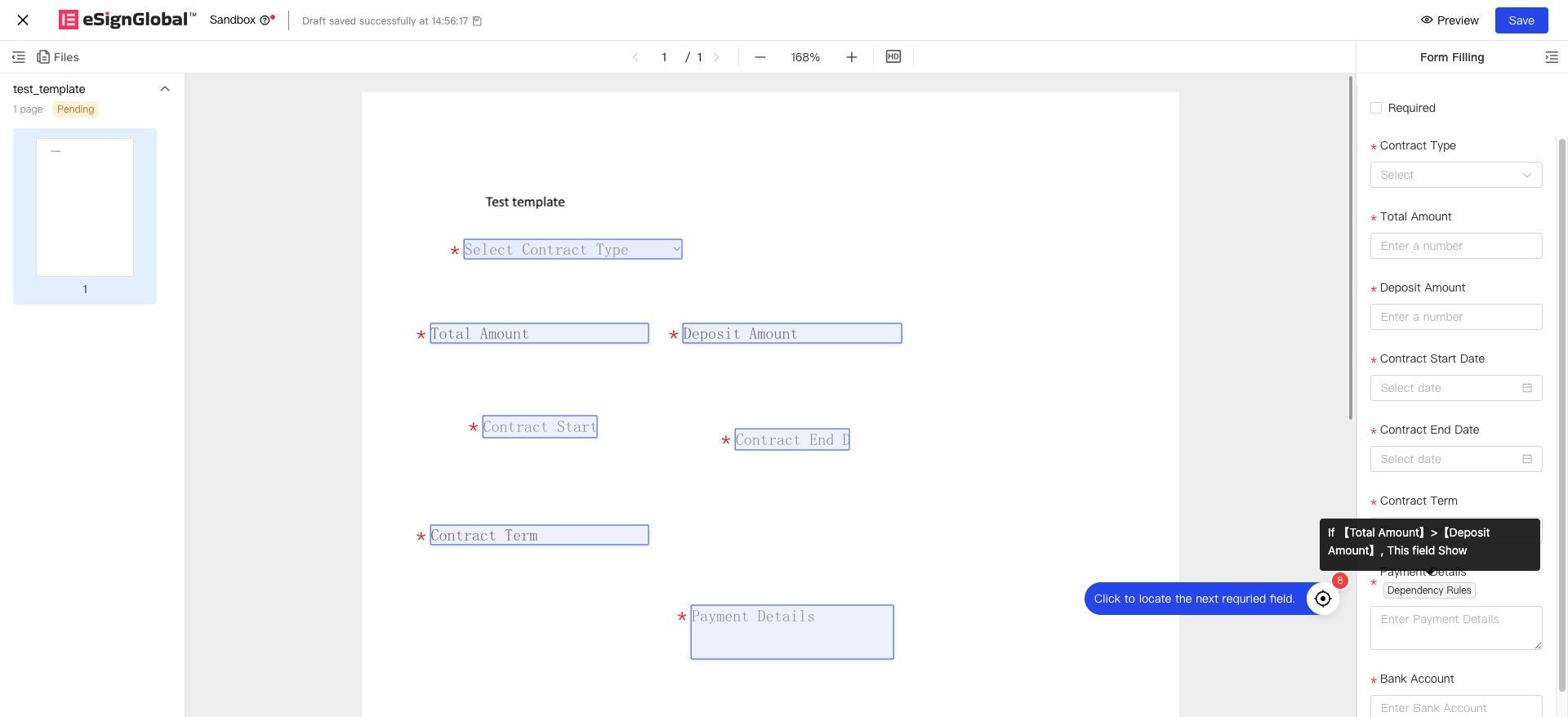
Es gibt zwei Zeitpunkte für das Auslösen von Regeln:
-
Nach dem Betreten der Unterzeichnungsseite wird die Verknüpfung des Steuerelements sofort ausgelöst, wenn das auslösende Steuerelement einen Standardwert oder einen vorausgefüllten Wert hat.
-
Sobald die Eingabe im auslösenden Steuerelement abgeschlossen ist, wird die Verknüpfung des Steuerelements ebenfalls sofort ausgelöst. (Wenn bereits Inhalte vorhanden sind, überschreibt eine Zuweisung den vorhandenen Wert.)
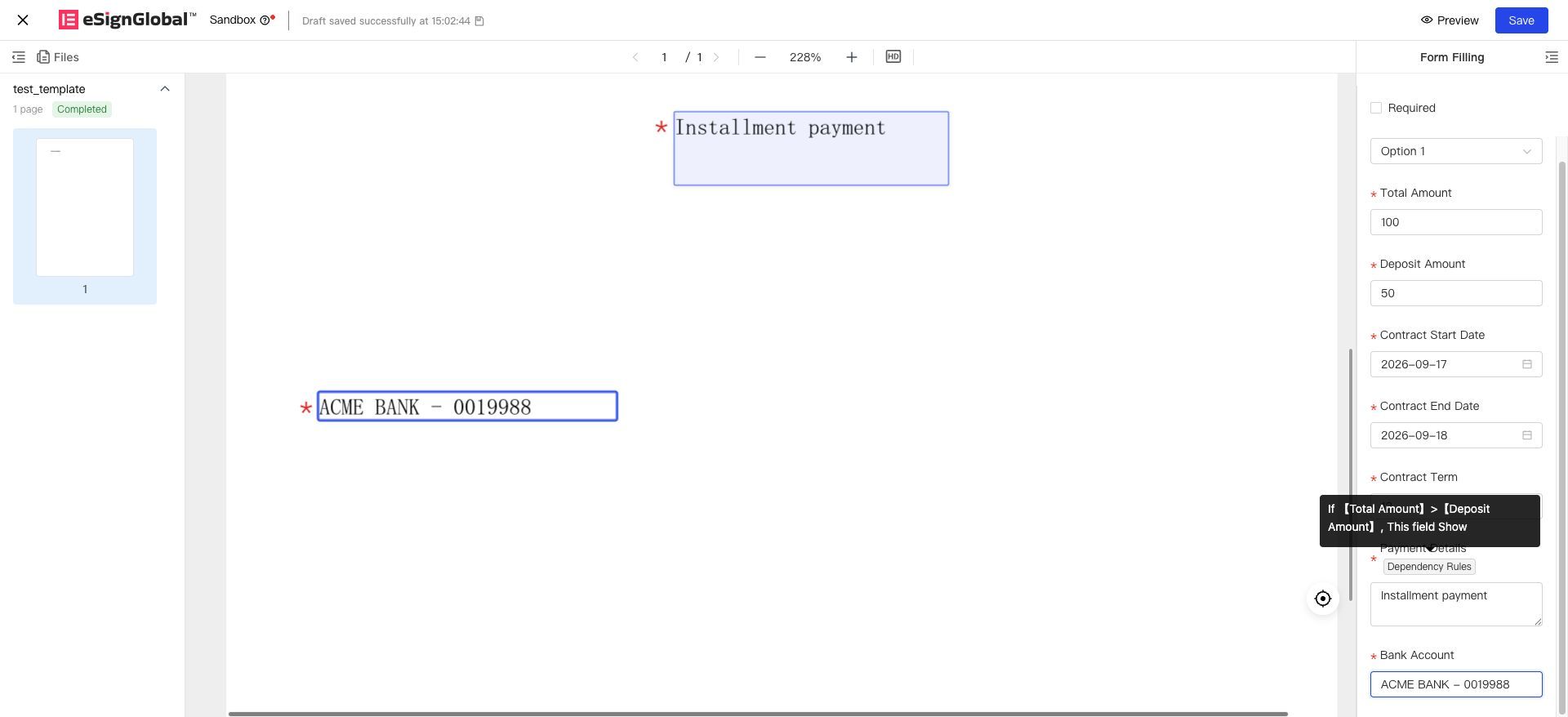
Auswirkung der einzelnen Aktionen auf der Unterzeichnungsseite:
| Aktion | Bei Erfüllung der Bedingung | Bei Nicht-Erfüllung der Bedingung |
|---|---|---|
| Anzeigen / Ausblenden / Pflichtfeld / Nicht-Pflichtfeld | Nach Regel ausführen | Steuerelement auf Standardwerte der Vorlage zurücksetzen |
| Wert zuweisen | Das Ziel-Steuerelement wird automatisch mit dem konfigurierten Wert befüllt; der Unterzeichner kann diesen jedoch weiterhin manuell ändern | Keine Zuweisung durchführen, aktuellen Wert des Ziel-Steuerelements weder löschen noch zurücksetzen |
| Leeren | Der Wert des Ziel-Steuerelements wird auf leer gesetzt; die Anzeige entspricht einem noch nie ausgefüllten Steuerelement | Kein Leeren durchführen, aktuellen Wert beibehalten, keine automatische Wiederherstellung der Standardwerte |
| Deaktivieren | Das Ziel-Steuerelement wird grau dargestellt und ist nicht mehr manuell bearbeitbar; vorhandene Werte werden normal angezeigt | Steuerelement wird automatisch wieder aktivierbar, aktueller Wert bleibt unverändert |
Ergänzende Hinweise:
-
Zusammenspiel von Zuweisung und anderen Funktionen: Wenn ein Wert einem Steuerelement zugewiesen wird und dieses Steuerelement als Eingabefeld für eine Formelberechnung dient, wird die Formel sofort mit dem neuen Wert neu berechnet.
-
Kombination von Leeren und Pflichtfeld: Nach dem Leeren in Kombination mit einer Pflichtfeld-Einstellung ist das Steuerelement leer und als Pflichtfeld markiert; der Unterzeichner muss es manuell ausfüllen, um die Übermittlung abzuschließen.
-
Überlagerung von Leeren und Deaktivieren: Bei gleichzeitiger Bedingungsauslösung wird zuerst geleert und dann deaktiviert; das Endergebnis ist ein leerer und nicht bearbeitbarer Zustand.
-
Deaktivierung beeinträchtigt System-Schreibvorgänge nicht: Die Deaktivierung verhindert nur die manuelle Bearbeitung durch den Unterzeichner; verknüpfte Wertzuweisungen, Datenquellen-Auffüllung, Formelberechnungen und OpenAPI-Schreibvorgänge können weiterhin normal Daten in deaktivierte Steuerelemente schreiben.
-
Deaktivierung und Sichtbarkeit sind unabhängig voneinander: Wenn ein Steuerelement ausgeblendet wird, bleibt der Deaktivierungsstatus erhalten; bei erneutem Einblenden wird der Deaktivierungsstatus entsprechend den aktuellen Bedingungen festgelegt.
-
PDF-Ausgabe von geleerten/deaktivierten Steuerelementen: Bei geleerten Steuerelementen werden im Vertragsdokument leere Werte ausgegeben; bei deaktivierten Steuerelementen werden die Werte normal ausgegeben, ohne graue Darstellung.
Nach der Übermittlung der Unterzeichnungsinhalte werden ausgeblendete Steuerelemente nicht in das Vertragsdokument gerendert und unterliegen auch keiner Pflichtfeld-Validierung. Falls jedoch Daten eingegeben wurden, bleiben diese erhalten und können abgefragt werden.
4. Häufig gestellte Fragen
F1: Warum erscheint dieselbe Verknüpfungsregel auf anderen Steuerelementen, obwohl sie während der Vorlagenkonfiguration nur auf einem Steuerelement eingerichtet wurde?
A: Dies liegt daran, dass diese Steuerelemente zusammengefüllt (merged) sind. Wenn mehrere Steuerelemente zusammengefüllt sind, haben sie auf der Unterzeichnungsseite denselben Eingabewert und lösen dieselben Verknüpfungsregeln aus. Achten Sie bei der Konfiguration darauf, ob mehrere Steuerelemente zur Zusammenführung gehören, und prüfen Sie, ob die ausgelösten Regeln den Erwartungen entsprechen, wenn neue Steuerelemente zur Gruppe hinzugefügt oder historische Steuerelemente daraus entfernt werden.
F2: Warum treten bei der Vorlagenkonfiguration Anomalien in den Verknüpfungsregeln auf, wenn sich der Name einer Option im Dropdown-Auswahlfeld ändert?
A: Wenn festgelegt wurde, dass der Wert des Dropdown-Feldes gleich einer bestimmten Option ist, um die Regel auszulösen, und anschließend der Optionsname angepasst wird, werden die Optionen in den Verknüpfungsregeln nicht aktualisiert. Sie müssen die Auswahl erneut treffen.
F3: Warum stimmen die Ausführungsergebnisse auf der Unterschriftenseite nicht mit den konfigurierten Regeln überein?
A: Die Ausführung von Steuerelement-Verknüpfungsregeln folgt mehreren Prinzipien:
-
Erstens: Wenn die Auslösebedingungen nicht erfüllt sind, kehren Sichtbarkeits-/Pflichtfeld-Aktionen zu den Standardwerten der Vorlage zurück.
-
Zweitens: Die Ausführungsreihenfolge der Verknüpfungsregeln hat eine Priorität. Wenn ein Steuerelement durch mehrere Regeln verknüpft wird, hat die Regel mit der späteren Ausführungszeit (also weiter hinten in der Reihenfolge) eine höhere Priorität.
-
Drittens: Wertzuweisungs- und Löschaktionen passen den aktuellen Wert des Zielsteuerelements nicht automatisch an, wenn die Bedingungen nicht erfüllt sind (kein Löschen, kein Zurücksetzen auf den Standardwert); Bei der Deaktivierungsaktion wird das Steuerelement bei Nichterfüllung der Bedingungen wieder bearbeitbar gemacht, der Wert bleibt jedoch unverändert.
Beispiel: Wenn [Verantwortliche Stadt] gleich [Service-Großregion] ist, wird [Haftungsbegründung] angezeigt. Bedeutet das, dass [Haftungsbegründung] ausgeblendet werden sollte, wenn diese beiden Werte ungleich sind? – Nein. Gemäß dem Implementierungsprinzip kehrt das Steuerelement bei Nichterfüllung der Bedingungen zur Standardeinstellung der Vorlage zurück. Da das Steuerelement in der Vorlage standardmäßig sichtbar ist, bleibt es sichtbar und wechselt nicht automatisch in den gegenteiligen Zustand.
Lösung: Wenn eine strenge Umkehrlogik erforderlich ist, können Sie einfach eine weitere Konfiguration in der Verknüpfungsregel hinzufügen: „Wenn [Verantwortliche Stadt] ungleich [Service-Großregion] ist, wird [Haftungsbegründung] ausgeblendet.“
F4: Warum funktionieren die Verknüpfungsregeln nicht, wenn beim massenhaften Starten über Vorlagen Inhalte in der Excel-Tabelle vorausgefüllt werden?
A: Das Ausfüllen/Vorausfüllen über OpenAPI unterstützt derzeit keine Steuerelement-Verknüpfungsregeln. Verknüpfungsregeln werden nur ausgelöst, wenn auf der Unterschriftenseite manuell ausgefüllt wird. Stellen Sie im Szenario des massenhaften Starts oder des Ausfüllens/Vorausfüllens über OpenAPI bitte selbst sicher, dass die eingegebenen Inhalte korrekt sind.
F5: Kann der Unterzeichner das zugewiesene Steuerelement nach der automatischen Wertzuweisung noch bearbeiten?
A: Ja. Die Wertzuweisung füllt lediglich automatisch einen Wert aus; der Unterzeichner kann diesen weiterhin manuell ändern. Wenn das Steuerelement nach der Zuweisung gesperrt und vor Änderungen geschützt werden soll, konfigurieren Sie für dieses Steuerelement dieselbe oder eine andere Regel mit der Aktion „Deaktivieren“.
F6: Warum kann bei der Wertzuweisung für Einzelwahl-, Dropdown- und Kontrollkästchen-Steuerelemente die Quelle „Steuerelementwert“ nicht ausgewählt werden?
A: Die Optionsmengen verschiedener Steuerelemente können unterschiedlich sein; eine direkte Referenzierung der Optionswerte führt häufig zu Unstimmigkeiten. Diese drei Steuerelementtypen unterstützen als Ziel der Wertzuweisung nur die Quelle „Optionswert“. Um eine Abbildung wie „Quelle Steuerelement wählt A → Ziel Steuerelement wählt B“ zu realisieren, konfigurieren Sie bitte mehrere Regeln über die Optionswerte. Beispiel: Wenn das Quelldropdown-Steuerelement „Kategorie A“ ist, konfigurieren Sie eine Regel, um das Zielsinglechoice-Steuerelement auf den Optionswert „Rangstufe 1“ zu setzen. Besonderer Hinweis: Für Kontrollkästchen-Steuerelemente kann der Optionswert nur auf „Aktiviert“ (angekreuzt) eingestellt werden. Um das Ziel-Kontrollkästchen wieder deaktiviert (nicht angekreuzt) zu machen, verwenden Sie bitte die Aktion „Leeren“.
F7: Wie wird bei der Datumsberechnung mit den Einheiten „Monat“ oder „Jahr“ verfahren, wenn das Monatsende oder ein Schaltjahr erreicht wird?
A: Bei der Berechnung nach Monaten wird der gleiche Tag im Zielmonat genommen; fehlt dieser Tag im Zielmonat, gilt der letzte Tag des Zielmonats (z. B. 31. Januar + 1 Monat = 28./29. Februar). Bei der Berechnung nach Jahren wird der gleiche Monat und Tag im Zieljahr genommen; fällt der 29. Februar in ein Nicht-Schaltjahr, wird auf den 28. Februar zurückgegangen. Ist die Option „Startdatum einschließen“ aktiviert, ist das Ergebnis der Tag des Fristablaufs (also einen Tag weniger); falls es bereits zu einer Anpassung wegen Monatsendes oder eines Schaltjahres kam, wird von diesem angepassten Datum nicht noch einmal abgezogen.


