'%3e%3cpath%20fill-rule='evenodd'%20clip-rule='evenodd'%20d='M6.99935%2012.8327C10.221%2012.8327%2012.8327%2010.221%2012.8327%206.99935C12.8327%203.77769%2010.221%201.16602%206.99935%201.16602C3.77769%201.16602%201.16602%203.77769%201.16602%206.99935C1.16602%2010.221%203.77769%2012.8327%206.99935%2012.8327Z'%20stroke='%23666666'%20stroke-linecap='round'%20stroke-linejoin='round'/%3e%3cpath%20d='M1.16602%207H12.8327'%20stroke='%23666666'%20stroke-linecap='round'%20stroke-linejoin='round'/%3e%3cpath%20fill-rule='evenodd'%20clip-rule='evenodd'%20d='M6.99935%2012.8327C8.28802%2012.8327%209.33268%2010.221%209.33268%206.99935C9.33268%203.77769%208.28802%201.16602%206.99935%201.16602C5.71068%201.16602%204.66602%203.77769%204.66602%206.99935C4.66602%2010.221%205.71068%2012.8327%206.99935%2012.8327Z'%20stroke='%23666666'%20stroke-linecap='round'%20stroke-linejoin='round'/%3e%3cpath%20d='M2.875%202.95898C3.93063%204.01461%205.38896%204.66754%206.99978%204.66754C8.61062%204.66754%2010.069%204.01461%2011.1246%202.95898'%20stroke='%23666666'%20stroke-linecap='round'%20stroke-linejoin='round'/%3e%3cpath%20d='M11.1246%2011.0425C10.069%209.98691%208.61062%209.33398%206.99978%209.33398C5.38896%209.33398%203.93063%209.98691%202.875%2011.0425'%20stroke='%23666666'%20stroke-linecap='round'%20stroke-linejoin='round'/%3e%3c/g%3e%3cdefs%3e%3cclipPath%20id='clip0_1267_9109'%3e%3crect%20width='14'%20height='14'%20fill='white'/%3e%3c/clipPath%3e%3c/defs%3e%3c/svg%3e)


 Service Center
Singpass Singapore Personal Digital Signature
Signers can securely sign PDF documents using personal digital certificates issued by the Singpass national digital identity service in eSign.AI.
Note:
Applicable Versions: Professional Edition and above.
Preparation Before Use
Note:
- Singpass signing only supports PDF documents.
- Signers must first view the document and signature location in eSign.AI, then jump to the Singpass Sign Portal to complete the signing.
- The signing task will only be marked as completed after eSign.AI receives the Singpass signing result and finishes writing back the signed PDF.
Before using Singpass for signing, please ensure the following preparations are completed:
- The current workspace is located in the Singapore data center.
- The signer has a valid Singpass account and can access the Singpass Sign Portal.
Warning: If the file, signature location, or workspace configuration does not meet Singpass requirements, the signer cannot fix it on the signing page themselves. Please have the initiator adjust the envelope and resend or resubmit.
Plugin Installation Guide
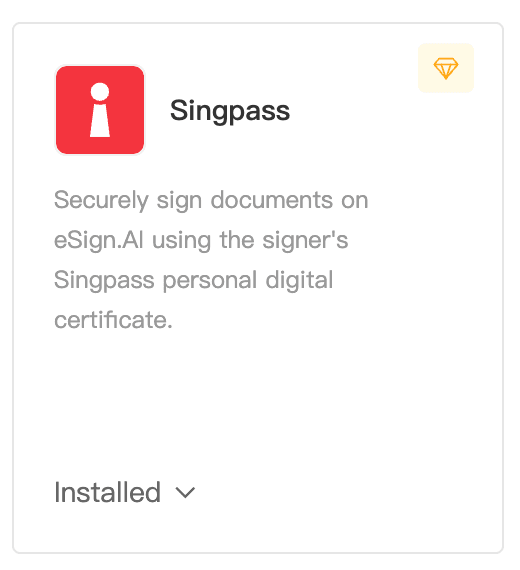
The workspace super administrator or administrator needs to install and enable Singpass in the plugin center first. After enabling, initiators or signers can select Singpass when creating a new digital signature envelope.
- Go to Plugin Center, find the Singpass digital signature plugin, and click Install to enable it.
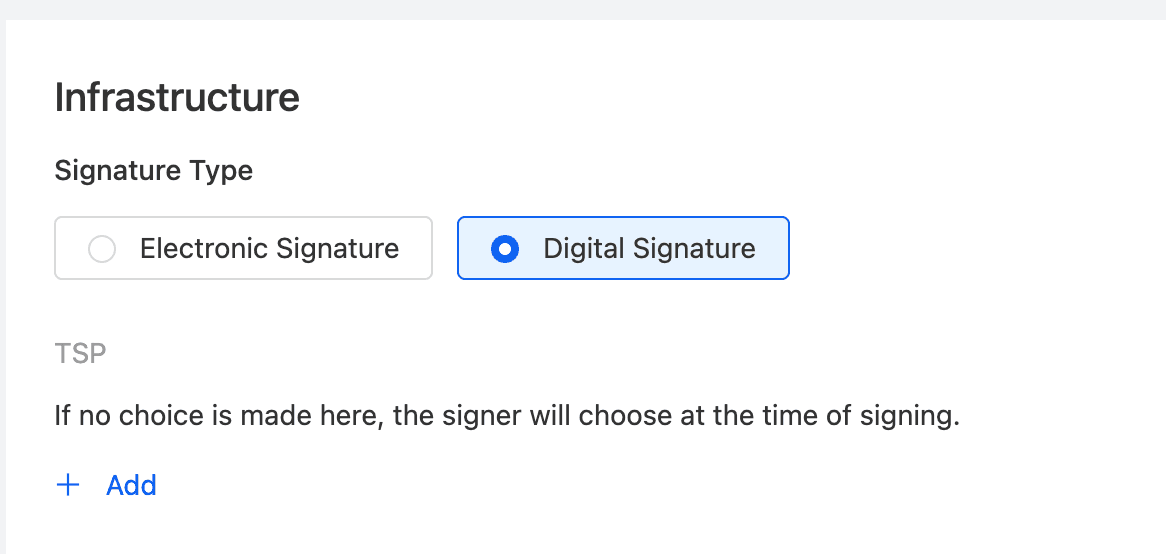
Initiator: Specify Digital Signature at Initiation
You can specify the digital signature method at initiation.
Note:
- If the initiator specifies Singpass, you can optionally fill in the signer’s NRIC / FIN to lock this signing session to a specific Singpass user. If left blank, eSign.AI will not require the signer to enter an ID number on the signing page, and this Singpass signing session will be locked to the first user who successfully logs in.
NRIC / FIN
Warning: NRIC / FIN is sensitive identity information. The system uses this information only to generate identity locking details when provided by the initiator; the plaintext is not sent to Singpass, and signers cannot modify this information during the signing process.
Check document requirements:
Before sending, please confirm that the PDF document meets Singpass requirements.
- The file must be a PDF.
- The PDF file size must be less than 10 MB.
- The PDF must have fewer than 100 pages.
- The PDF must not be encrypted.
- The PDF must not be a hybrid-reference PDF.
- The Singpass signing area must not overlap with other Singpass signing areas or recognizable existing signature areas.
Warning: If the file or signature location does not meet Singpass requirements, the system will block initiation or submission. Please compress, split, regenerate the PDF, or adjust the signing area position before proceeding.
Add Singpass Signature Control:
When the signer is designated to use Singpass, the Specify Signing Location page only supports adding signature controls.
Signer: Submit Singpass Signature
After opening the signing link, the signer will first enter the eSign.AI signing page to review the document and signing location. After confirming everything is correct, they will proceed to Singpass.
- Open the signing link, review the document content and your own signing location, then click Sign with Singpass.
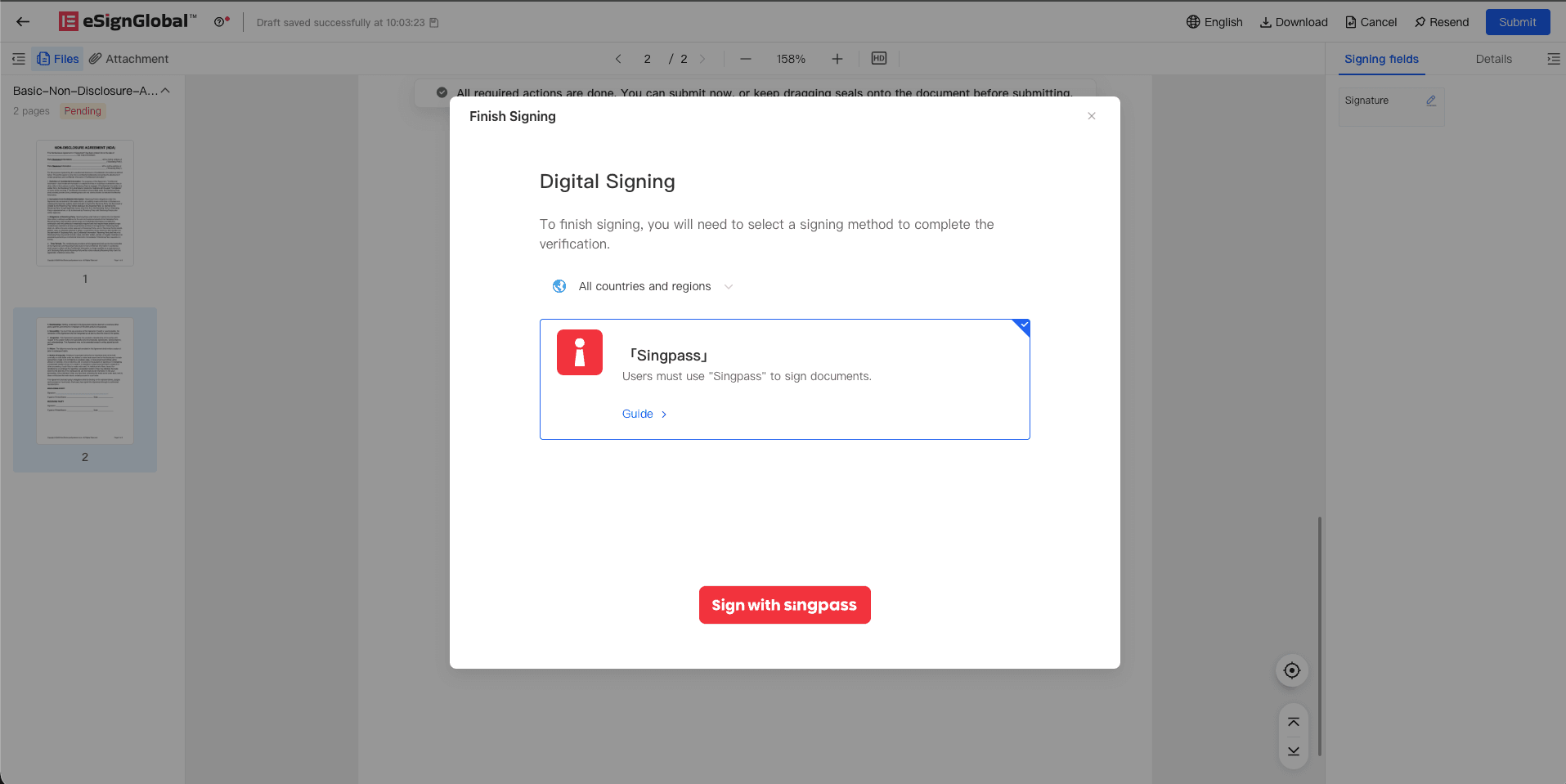
After the signer continues, the current page will redirect to the Singpass Sign Portal.
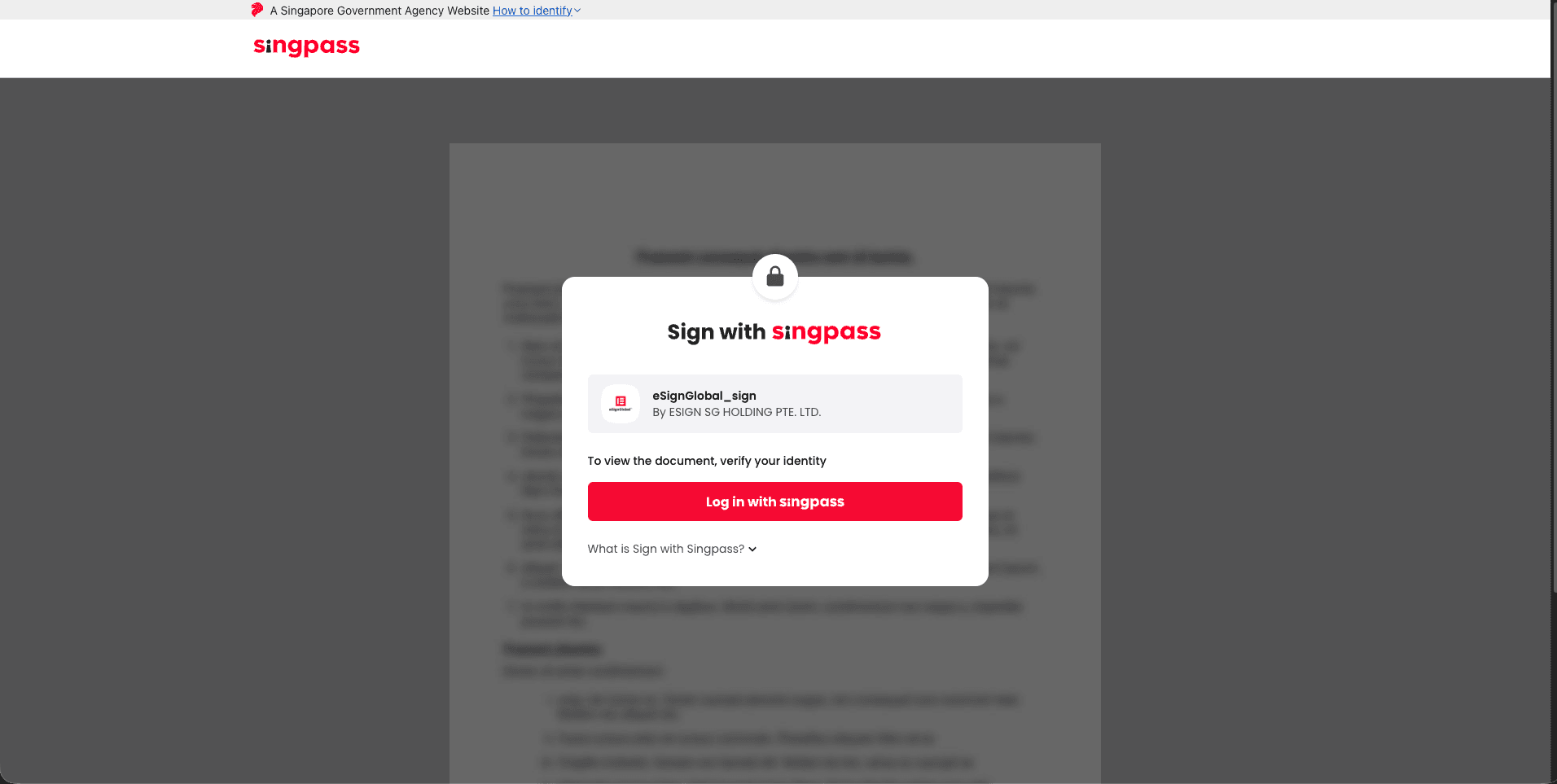
Complete the signing on the Singpass page:
-
Log in using Singpass.
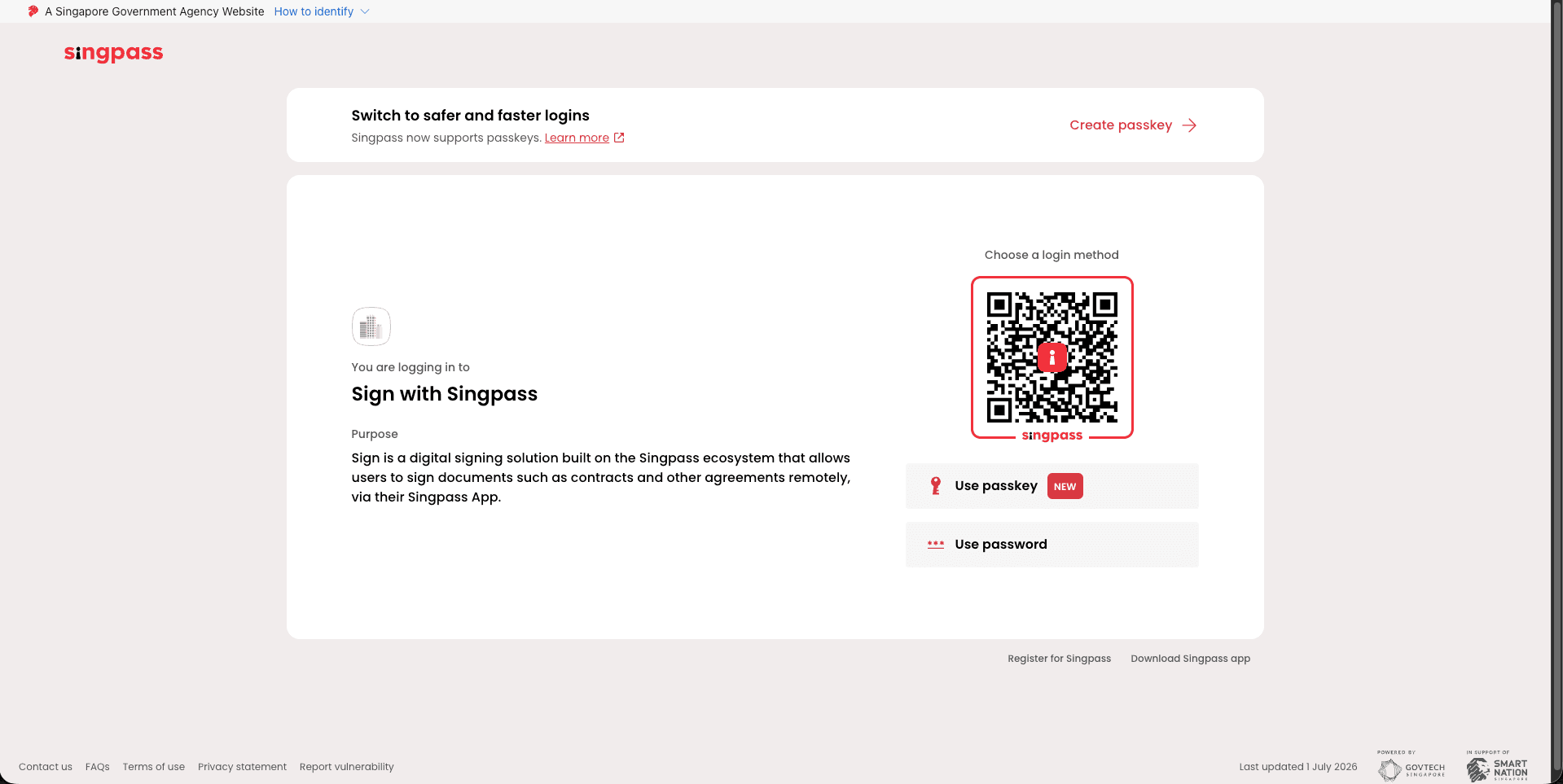
-
View the pending document on the Singpass page.
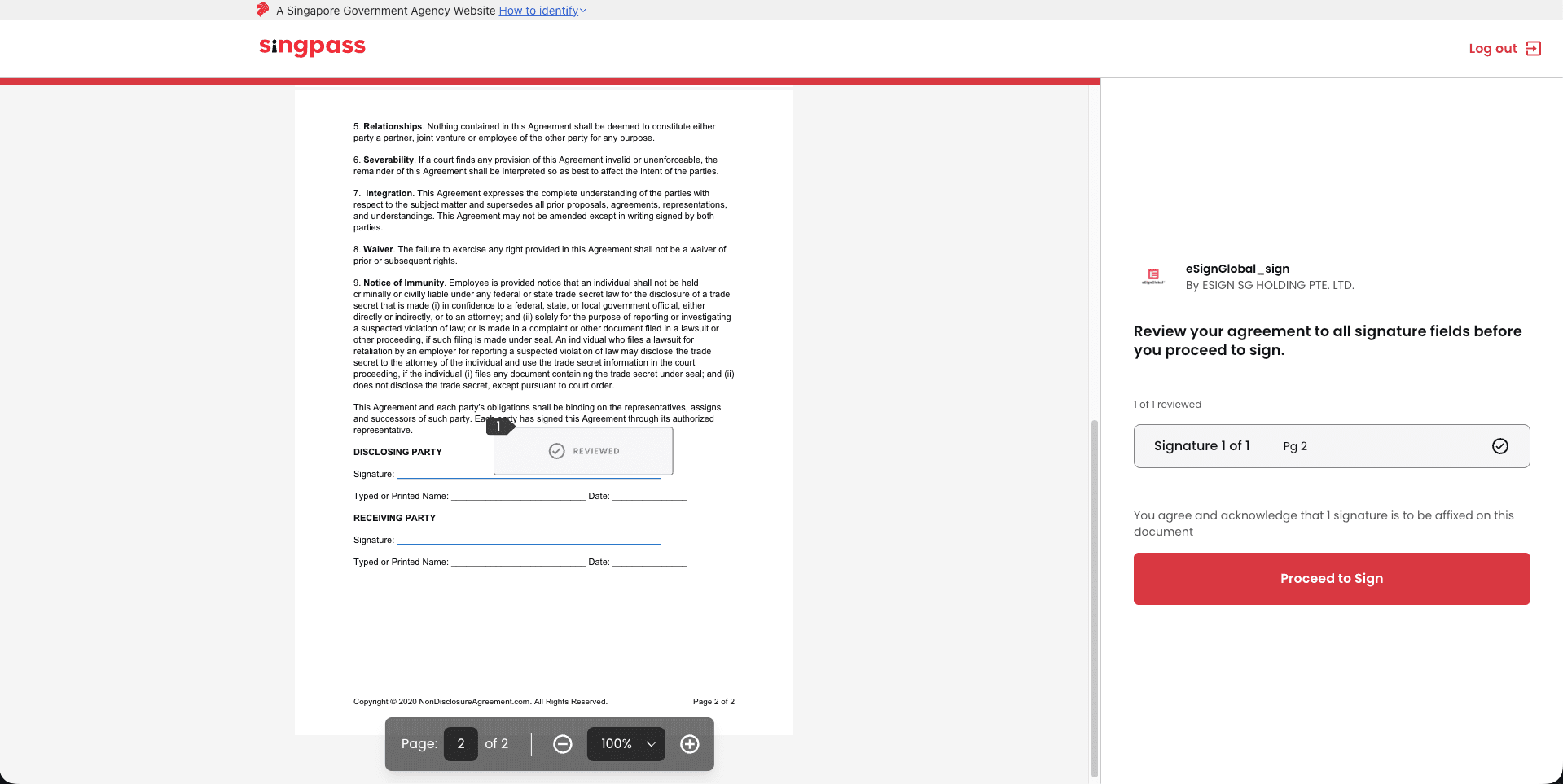
-
Follow the on-screen prompts to enter the corresponding code in Singpass to complete verification.
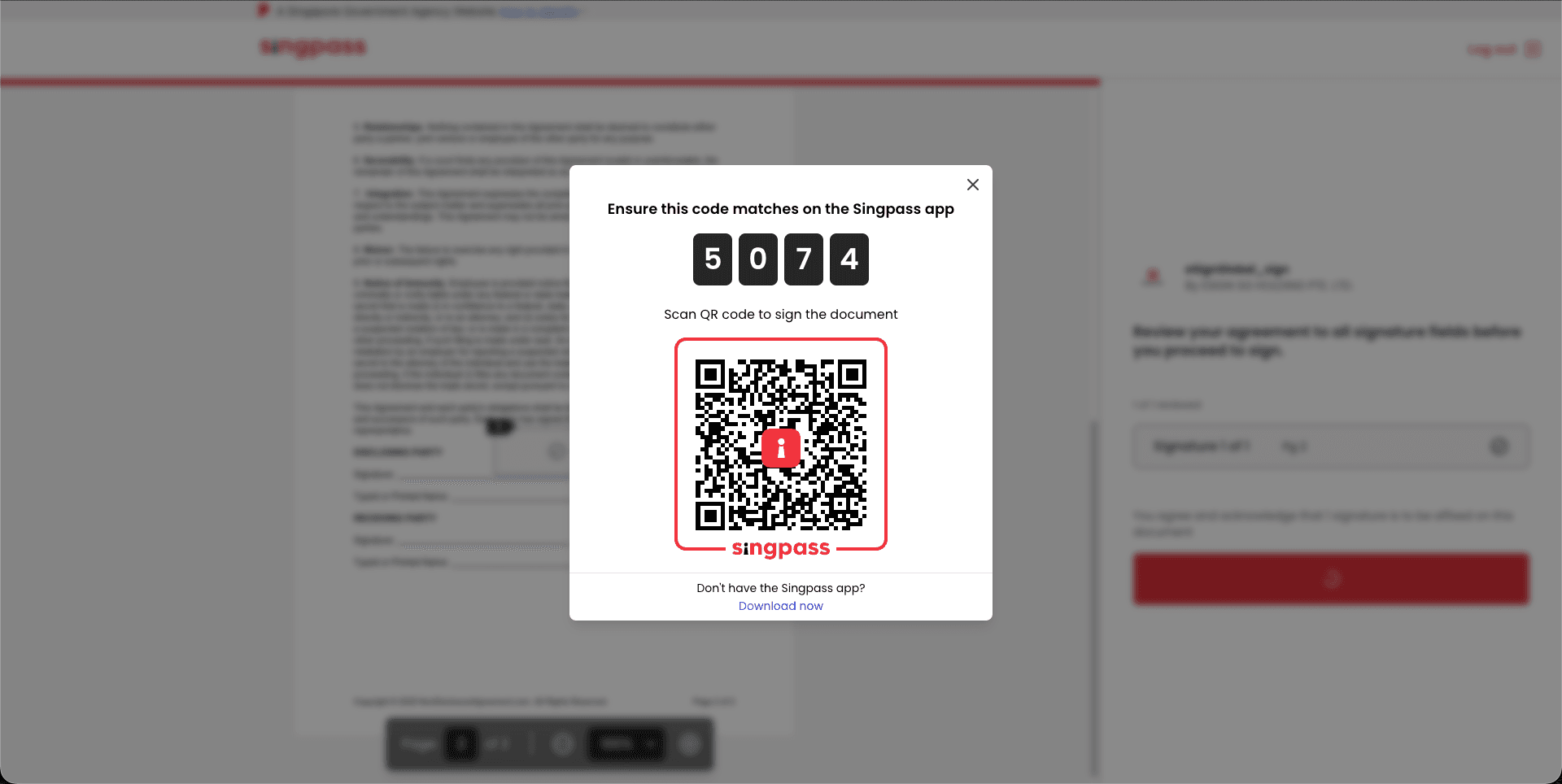
-
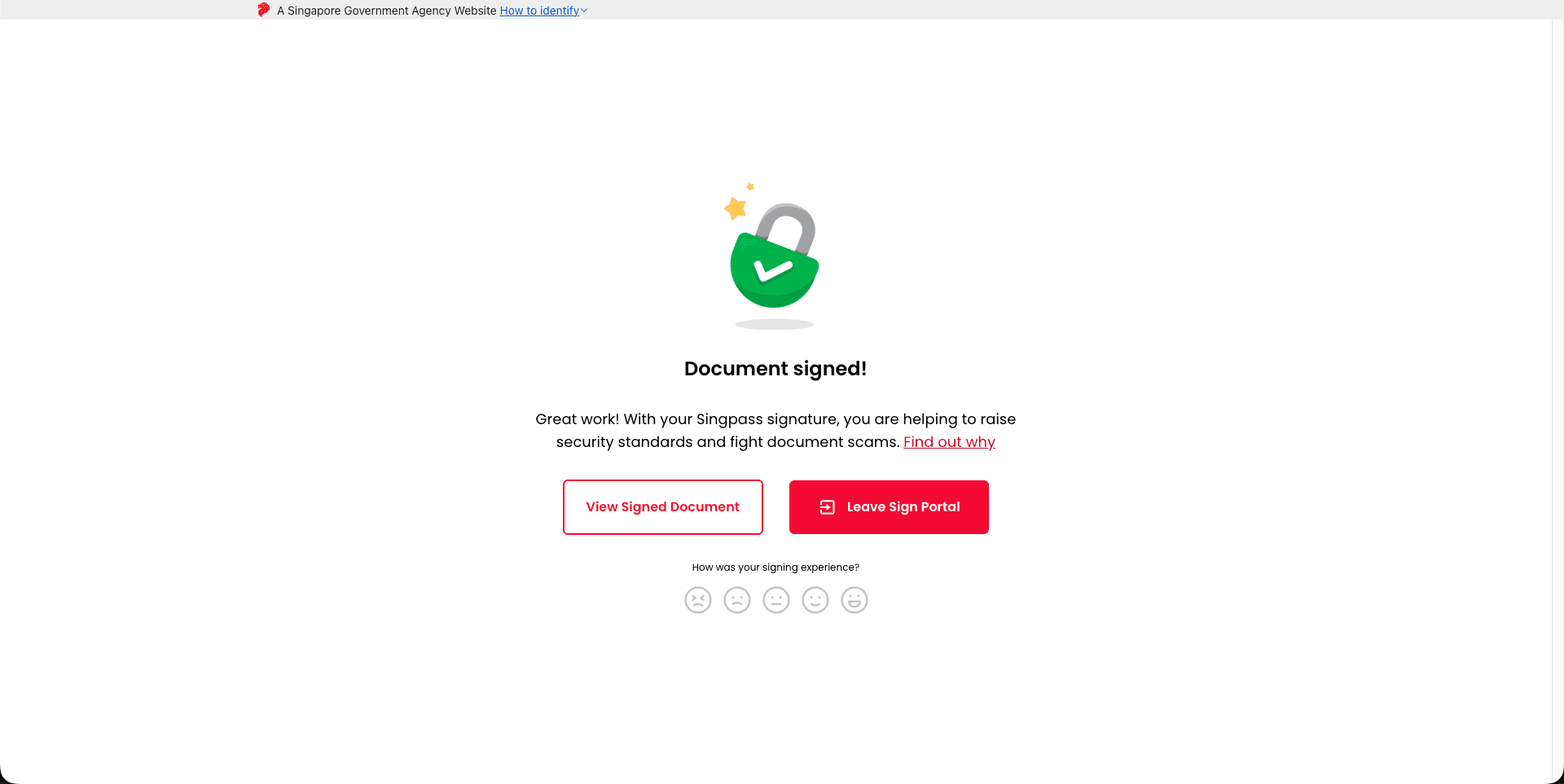
Once you see the successful signing page, click Leave Sign Portal to return to eSign.AI.
-
Return to eSign.AI to view the result.