
'%3e%3cpath%20fill-rule='evenodd'%20clip-rule='evenodd'%20d='M6.99935%2012.8327C10.221%2012.8327%2012.8327%2010.221%2012.8327%206.99935C12.8327%203.77769%2010.221%201.16602%206.99935%201.16602C3.77769%201.16602%201.16602%203.77769%201.16602%206.99935C1.16602%2010.221%203.77769%2012.8327%206.99935%2012.8327Z'%20stroke='%23666666'%20stroke-linecap='round'%20stroke-linejoin='round'/%3e%3cpath%20d='M1.16602%207H12.8327'%20stroke='%23666666'%20stroke-linecap='round'%20stroke-linejoin='round'/%3e%3cpath%20fill-rule='evenodd'%20clip-rule='evenodd'%20d='M6.99935%2012.8327C8.28802%2012.8327%209.33268%2010.221%209.33268%206.99935C9.33268%203.77769%208.28802%201.16602%206.99935%201.16602C5.71068%201.16602%204.66602%203.77769%204.66602%206.99935C4.66602%2010.221%205.71068%2012.8327%206.99935%2012.8327Z'%20stroke='%23666666'%20stroke-linecap='round'%20stroke-linejoin='round'/%3e%3cpath%20d='M2.875%202.95898C3.93063%204.01461%205.38896%204.66754%206.99978%204.66754C8.61062%204.66754%2010.069%204.01461%2011.1246%202.95898'%20stroke='%23666666'%20stroke-linecap='round'%20stroke-linejoin='round'/%3e%3cpath%20d='M11.1246%2011.0425C10.069%209.98691%208.61062%209.33398%206.99978%209.33398C5.38896%209.33398%203.93063%209.98691%202.875%2011.0425'%20stroke='%23666666'%20stroke-linecap='round'%20stroke-linejoin='round'/%3e%3c/g%3e%3cdefs%3e%3cclipPath%20id='clip0_1267_9109'%3e%3crect%20width='14'%20height='14'%20fill='white'/%3e%3c/clipPath%3e%3c/defs%3e%3c/svg%3e)


 Service Center
File Visibility Settings
Note:
- [Applicable Versions]: Professional Edition and above.
The file visibility setting is used to control which signers can view each document within the same envelope. It applies to scenarios involving multiple documents and multiple signers where document content needs to be isolated, such as when only specific members need to view and sign certain documents, while others do not need to see them.
Set File Visibility Scope
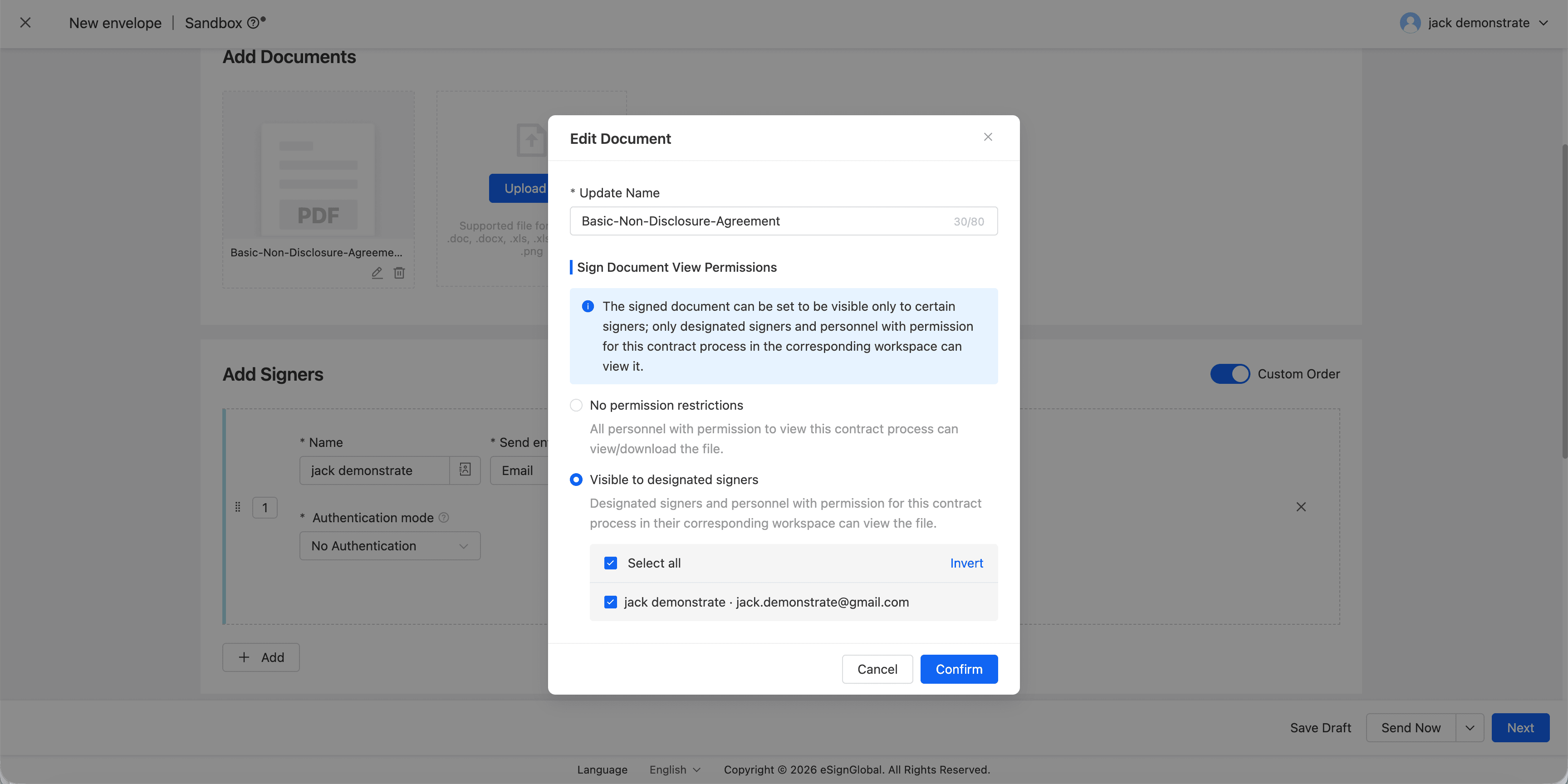
When initiating an envelope, you can select the following visibility scopes for each document:
- No Restrictions: All signers can view the document.
- Specified Signers Only: Only selected signers can view, sign, and download the document.
Note
For documents that need to be viewed by everyone, select “No Restrictions”; for documents intended for specific individuals, select “Specified Signers Only”.
Initiate Envelope
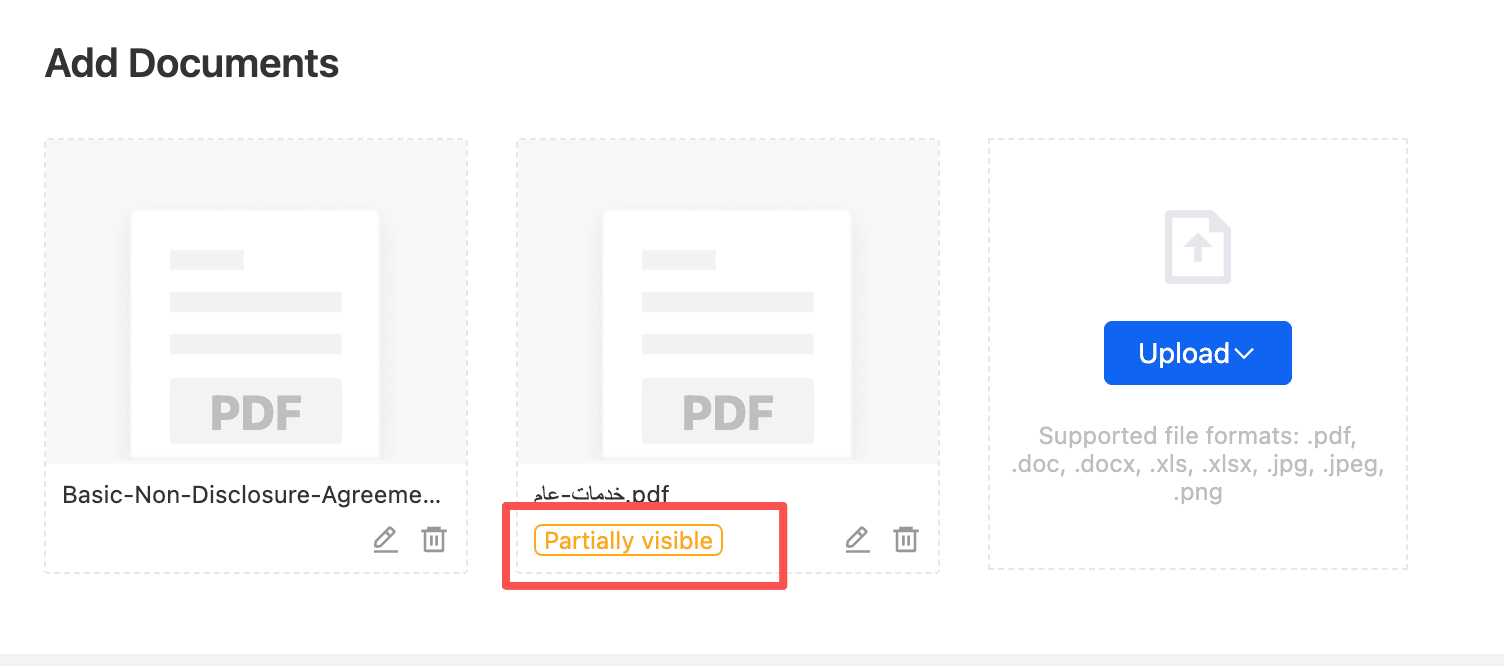
When initiating an envelope, the system displays selectable objects based on signers. You can check the signers allowed to view each document.
- Upload files and add signers.
- Open the visibility settings for the target document in the document list.
- Select the visibility scope and save.
- Continue specifying positions or initiate the envelope.
Tip
Each signer must have at least one visible document; otherwise, the system will prevent proceeding to the next step or initiating the envelope.
Specify Positions and Sign
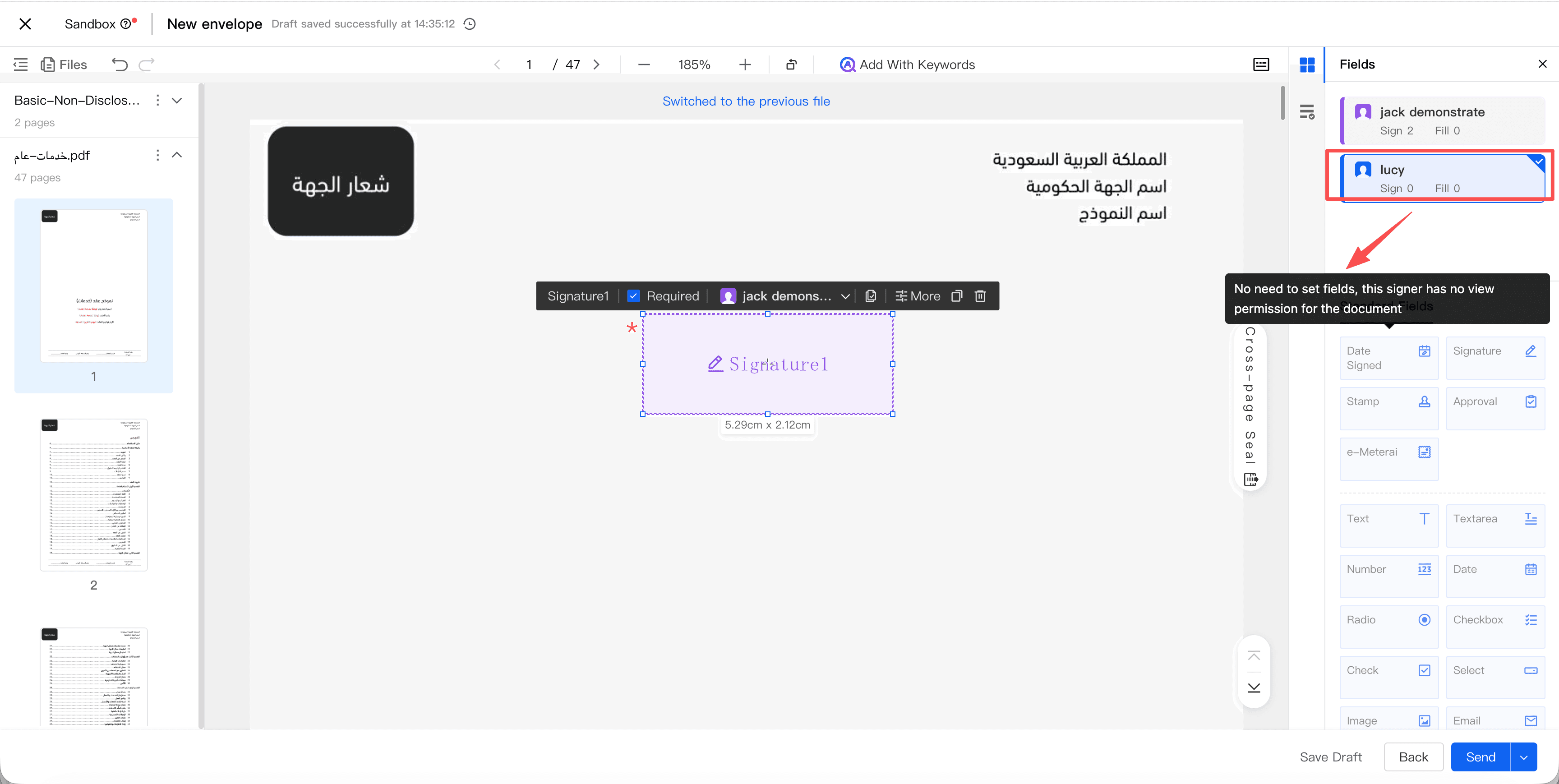
After entering the Specify Position page, the system only allows placing controls on documents visible to the signer. Once the envelope is initiated, signers can only see documents they have permission to access.
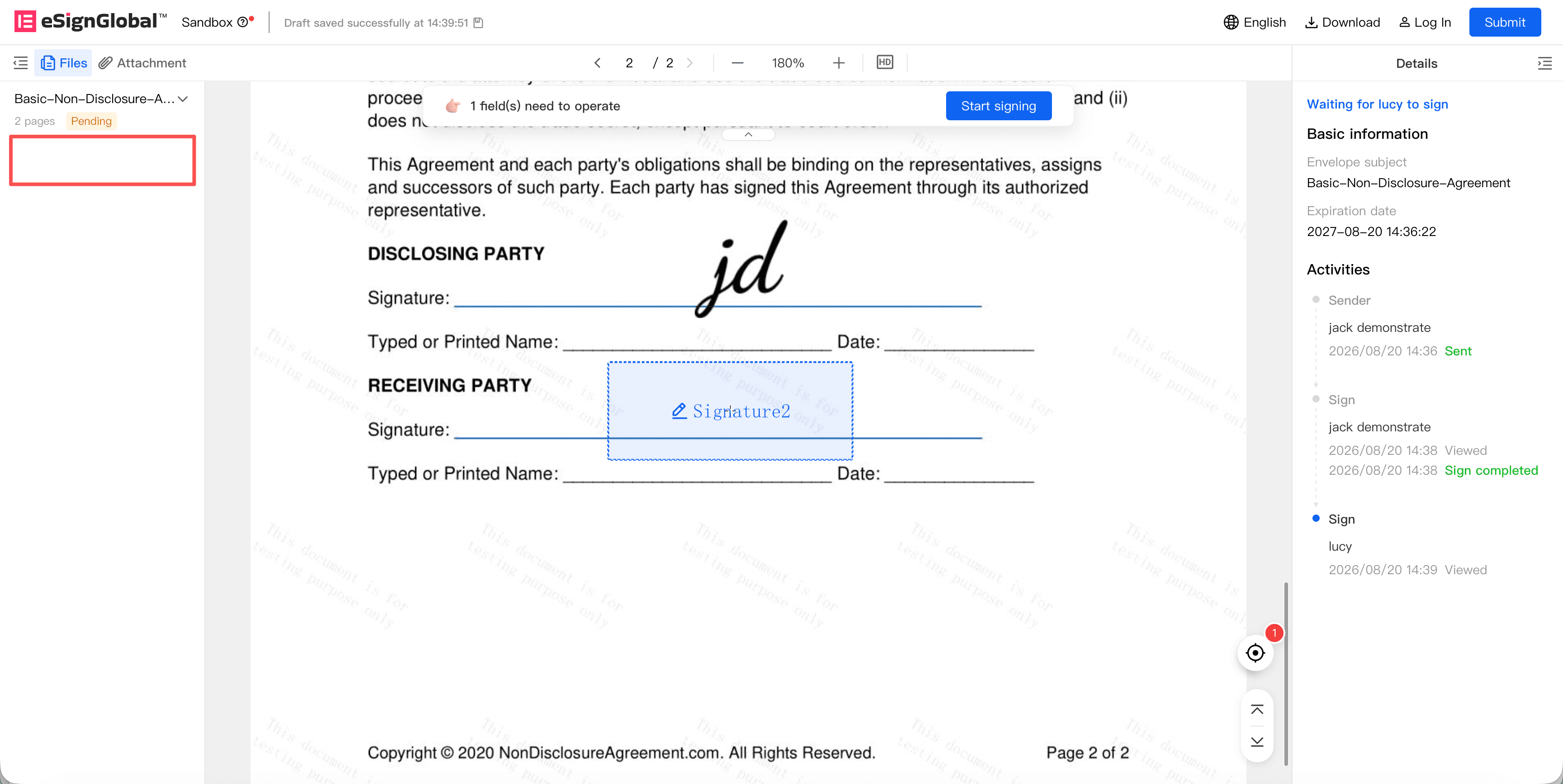
Invisible documents will not be displayed in the following locations:
- Signature pages
- Preview pages
- Document thumbnails
- Document downloads
- Document resources such as page counts and control coordinates
Copy Envelope
When copying an envelope to generate a new draft, the system inherits the file visibility scope of the original envelope. Before initiating, you can still readjust the configuration.
Precautions
- File visibility scope supports configuration only before initiation;
- If file visibility scope is set, merging and downloading files is not allowed.
- Each signer or signing node must have at least one visible document.
- When the sender is also the signer, if a document is invisible, the user can view the document in read-only mode but cannot sign it.


