'%3e%3cpath%20fill-rule='evenodd'%20clip-rule='evenodd'%20d='M6.99935%2012.8327C10.221%2012.8327%2012.8327%2010.221%2012.8327%206.99935C12.8327%203.77769%2010.221%201.16602%206.99935%201.16602C3.77769%201.16602%201.16602%203.77769%201.16602%206.99935C1.16602%2010.221%203.77769%2012.8327%206.99935%2012.8327Z'%20stroke='%23666666'%20stroke-linecap='round'%20stroke-linejoin='round'/%3e%3cpath%20d='M1.16602%207H12.8327'%20stroke='%23666666'%20stroke-linecap='round'%20stroke-linejoin='round'/%3e%3cpath%20fill-rule='evenodd'%20clip-rule='evenodd'%20d='M6.99935%2012.8327C8.28802%2012.8327%209.33268%2010.221%209.33268%206.99935C9.33268%203.77769%208.28802%201.16602%206.99935%201.16602C5.71068%201.16602%204.66602%203.77769%204.66602%206.99935C4.66602%2010.221%205.71068%2012.8327%206.99935%2012.8327Z'%20stroke='%23666666'%20stroke-linecap='round'%20stroke-linejoin='round'/%3e%3cpath%20d='M2.875%202.95898C3.93063%204.01461%205.38896%204.66754%206.99978%204.66754C8.61062%204.66754%2010.069%204.01461%2011.1246%202.95898'%20stroke='%23666666'%20stroke-linecap='round'%20stroke-linejoin='round'/%3e%3cpath%20d='M11.1246%2011.0425C10.069%209.98691%208.61062%209.33398%206.99978%209.33398C5.38896%209.33398%203.93063%209.98691%202.875%2011.0425'%20stroke='%23666666'%20stroke-linecap='round'%20stroke-linejoin='round'/%3e%3c/g%3e%3cdefs%3e%3cclipPath%20id='clip0_1267_9109'%3e%3crect%20width='14'%20height='14'%20fill='white'/%3e%3c/clipPath%3e%3c/defs%3e%3c/svg%3e)


 Service Center
AI Center
Before using the features in this user manual, you must first understand the limitations of the AI Hub corresponding to different versions (covering sub-items such as AI Summary, AI Translation, AI Risk Assessment, AI Contract Drafting, etc.):
- Trial Version: Does not support AI Hub features
- Basic Version: Supports AI Hub features
- Professional Version: Supports AI Hub features
AI Hub is an intelligent assistance center provided by eSign.AI, integrating various AI capabilities to help users quickly understand content, identify risks, and generate contract drafts before document signing, thereby achieving a more efficient and secure signing experience.
Note:
- The AI features are in Beta version, and AI-generated content is for reference only.
-
Administrators navigate to the Plugin Center to install the required AI feature plugins.

[Magic Wand Wave]
AI Translator
-
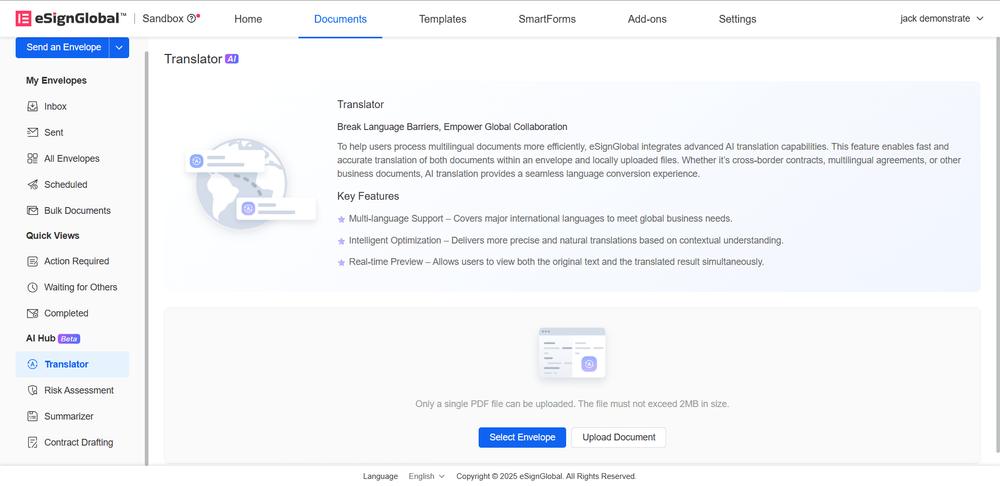
After installing the AI plugin, you can access [AI Center - Translator] below the file list.
-
Users can select an existing envelope or upload a file for AI translation. This guide uses selecting an envelope as an example.

-
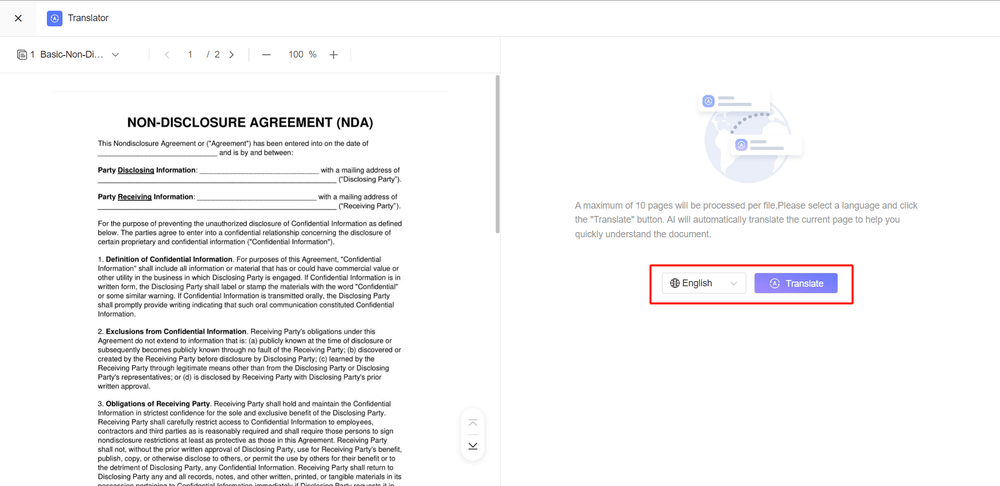
On the translation page, select the target language, click the Translate button, and start translating the current page.
-
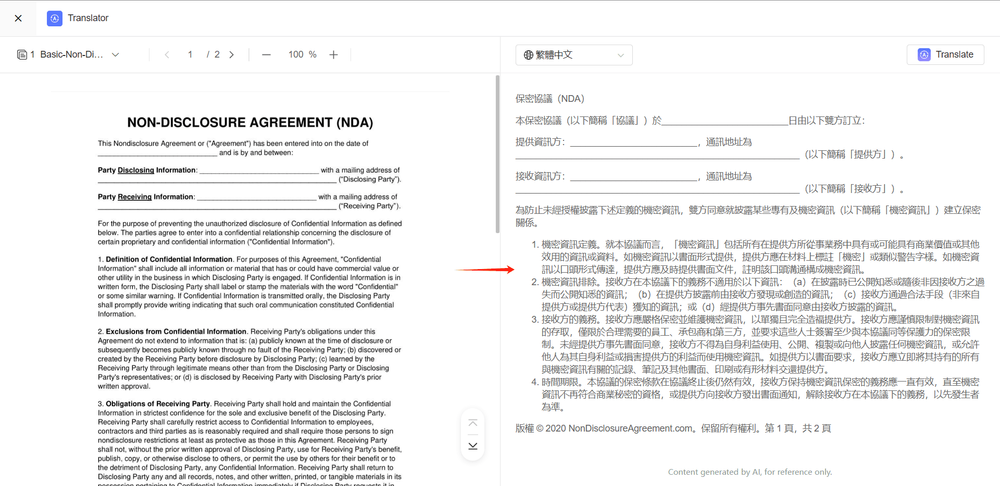
The translation results can be viewed on the right side of the screen.
[Magic Wand Wave] AI Risk Identification
-
After installing the AI plugin, you can access AI Center - Risk Identification below the file list.

-
Users can select an existing envelope or upload a file for AI risk identification. This guide uses uploading a file as an example.
-
On the risk identification page, select a country/region, then click the Identify button to identify document risks based on the laws of the selected country/region.

-
The risk identification results can be viewed on the right side of the screen.
[Magic Wand Wave] AI Summary Generator
-
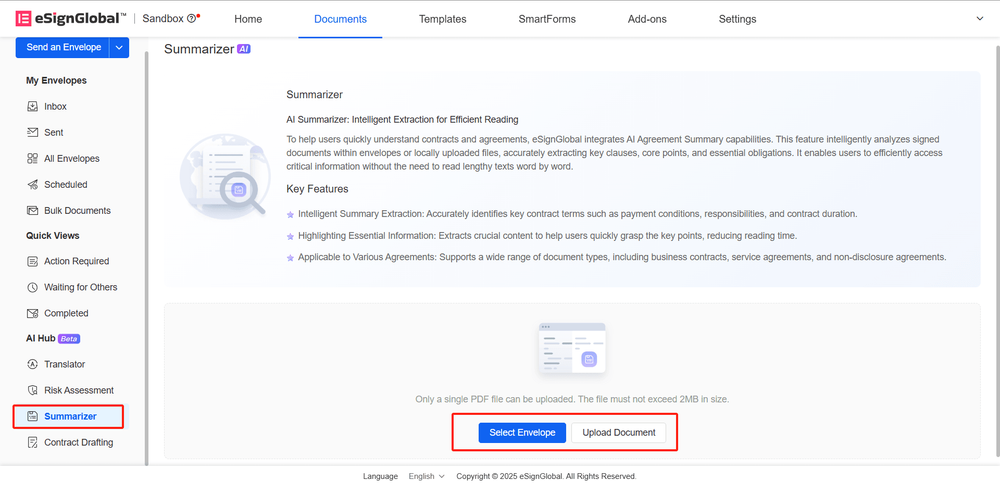
After installing the AI plugin, you can access AI Center - Summary Generator below the file list.
-
Users can select an existing envelope or upload a file for AI summary generation. This guide uses uploading a file as an example.
-
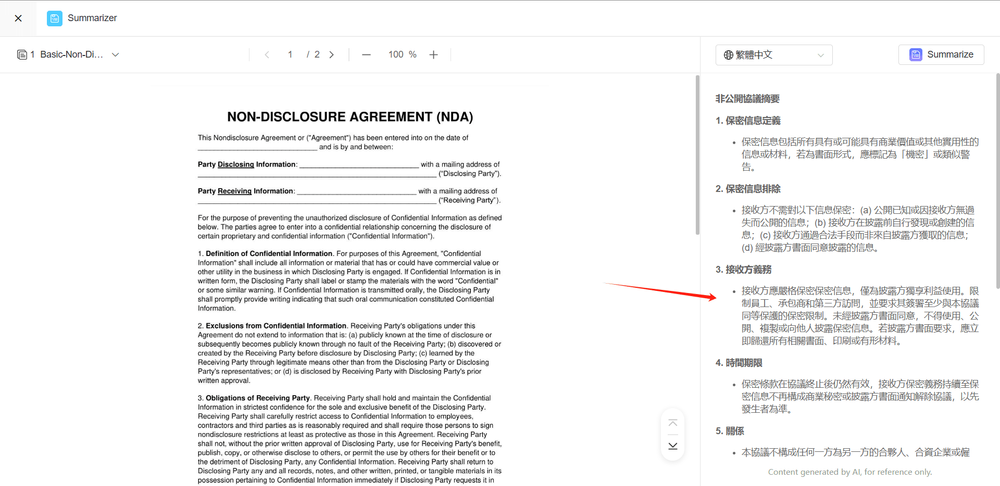
On the summary generator page, select the language for the summary, then click the Generate Summary button to create a document summary.

-
The generated summary can be viewed on the right side of the screen.
[Magic Wand Wave] AI Contract Drafting
-
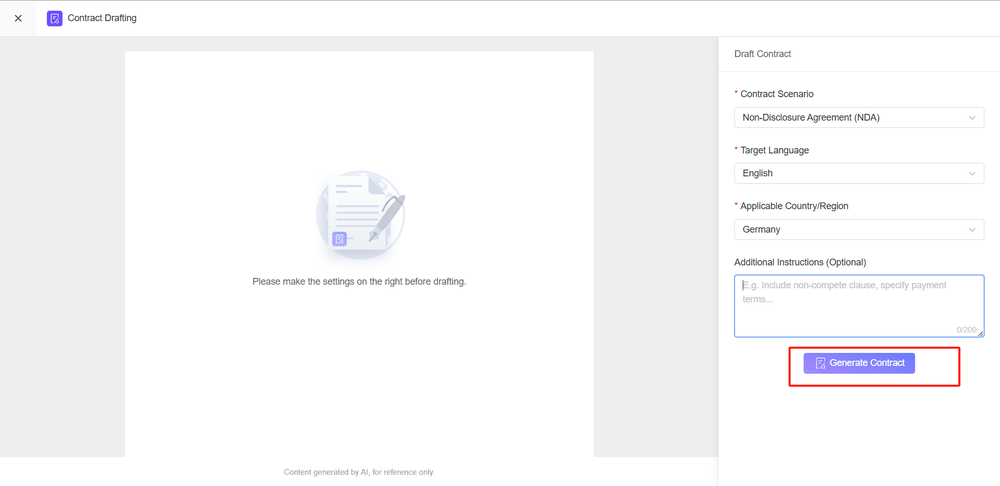
After installing the AI plugin, you can access AI Center - Contract Drafting below the file list. Click the Start Drafting button to enter the contract drafting page.

-
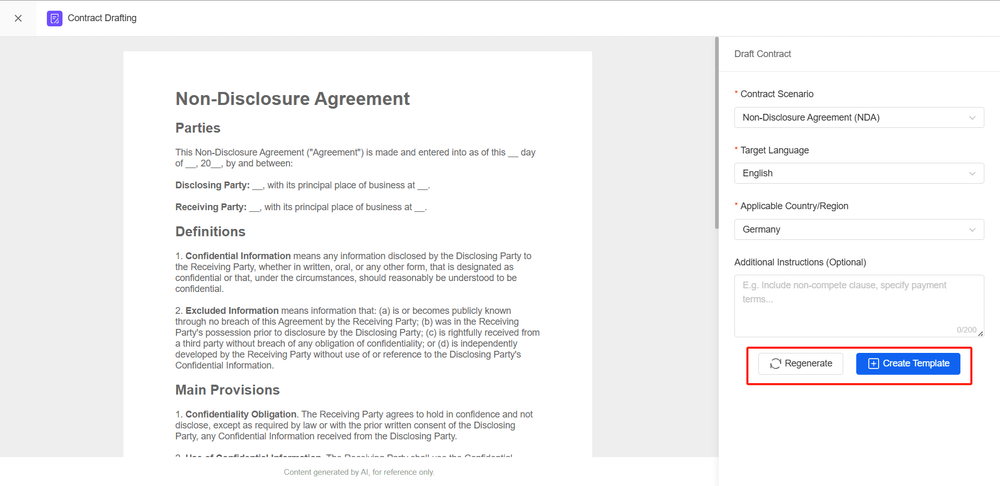
Select the contract scenario, target language, applicable country/region, and additional notes, then click the Generate Contract button to start generating the contract content.
-
If you are unsatisfied with the generated contract, you can regenerate it; if it meets your expectations, you can create a template.