
'%3e%3cpath%20fill-rule='evenodd'%20clip-rule='evenodd'%20d='M6.99935%2012.8327C10.221%2012.8327%2012.8327%2010.221%2012.8327%206.99935C12.8327%203.77769%2010.221%201.16602%206.99935%201.16602C3.77769%201.16602%201.16602%203.77769%201.16602%206.99935C1.16602%2010.221%203.77769%2012.8327%206.99935%2012.8327Z'%20stroke='%23666666'%20stroke-linecap='round'%20stroke-linejoin='round'/%3e%3cpath%20d='M1.16602%207H12.8327'%20stroke='%23666666'%20stroke-linecap='round'%20stroke-linejoin='round'/%3e%3cpath%20fill-rule='evenodd'%20clip-rule='evenodd'%20d='M6.99935%2012.8327C8.28802%2012.8327%209.33268%2010.221%209.33268%206.99935C9.33268%203.77769%208.28802%201.16602%206.99935%201.16602C5.71068%201.16602%204.66602%203.77769%204.66602%206.99935C4.66602%2010.221%205.71068%2012.8327%206.99935%2012.8327Z'%20stroke='%23666666'%20stroke-linecap='round'%20stroke-linejoin='round'/%3e%3cpath%20d='M2.875%202.95898C3.93063%204.01461%205.38896%204.66754%206.99978%204.66754C8.61062%204.66754%2010.069%204.01461%2011.1246%202.95898'%20stroke='%23666666'%20stroke-linecap='round'%20stroke-linejoin='round'/%3e%3cpath%20d='M11.1246%2011.0425C10.069%209.98691%208.61062%209.33398%206.99978%209.33398C5.38896%209.33398%203.93063%209.98691%202.875%2011.0425'%20stroke='%23666666'%20stroke-linecap='round'%20stroke-linejoin='round'/%3e%3c/g%3e%3cdefs%3e%3cclipPath%20id='clip0_1267_9109'%3e%3crect%20width='14'%20height='14'%20fill='white'/%3e%3c/clipPath%3e%3c/defs%3e%3c/svg%3e)


 Service Center
Using the Abbreviated Signature Control
Through the Initials control, which uses an abbreviated signature, the sender can require signers to enter their name initials or an abbreviated signature at specified locations in contracts, agreements, or attachments. This is used for scenarios such as page-by-page confirmation, key clause confirmation, and attachment confirmation. Signers can select or create their own abbreviated signatures in eSign.AI and complete the confirmation at the designated location.
Note:
Applicable Versions: Basic Edition and above.
Features of the Abbreviated Signature Control:
Note:
- An abbreviated signature is a signing control, not a standard text input field.
- An abbreviated signature can be initiated as the sole signing control, or it can be used alongside other controls such as signatures, stamps, and approvals.
Adding the Abbreviated Signature Control on the Authoring Page
The sender can add the abbreviated signature control at specified locations within the signing workflow and assign it to specific signers.
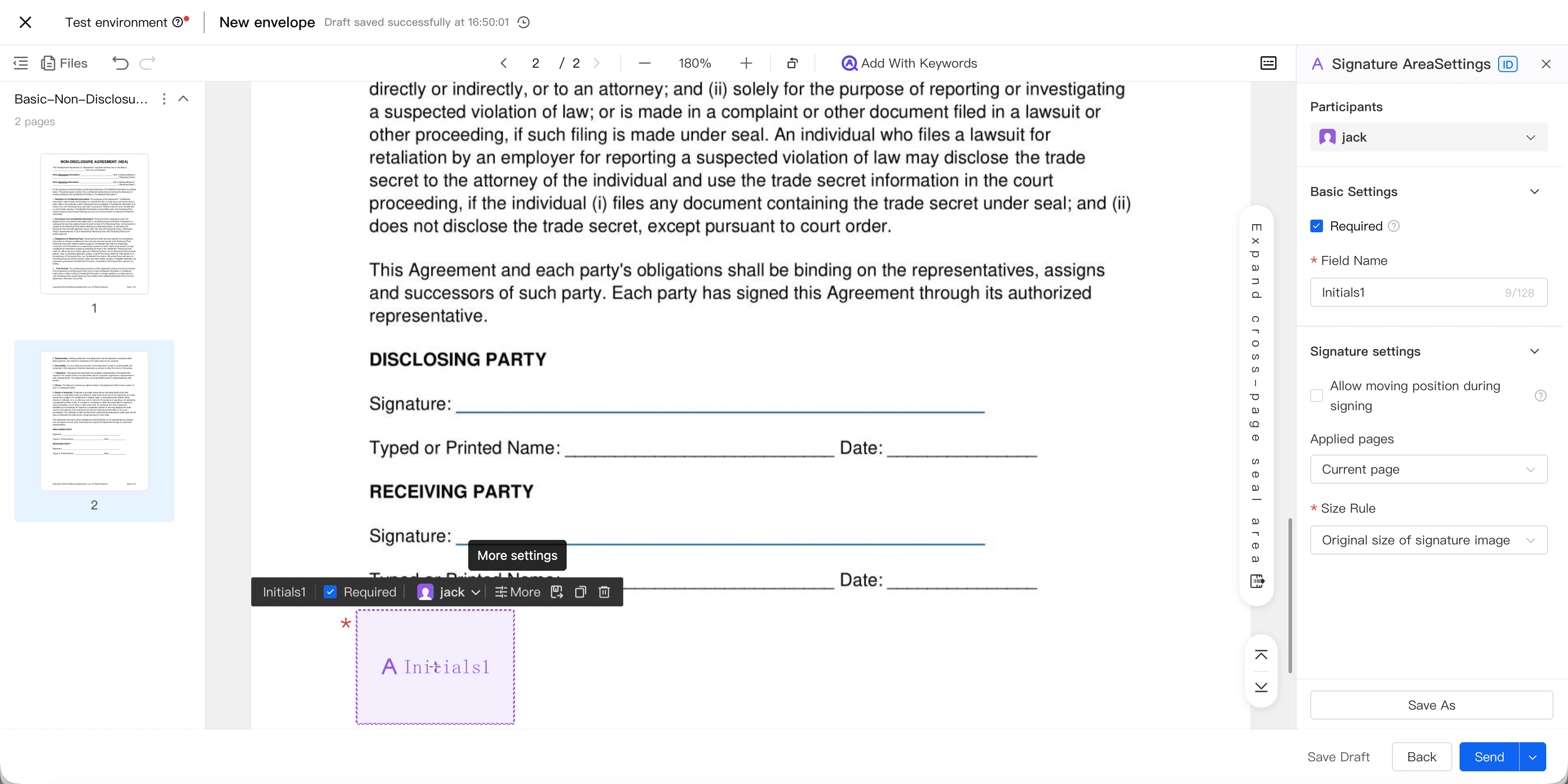
The abbreviated signature control is required by default, but the sender can also set it as optional. If a required control is incomplete, the signer cannot submit the signing; if an optional control is incomplete, it does not affect the submission of the signing.
Note:
- A single signer can have multiple abbreviated signature controls simultaneously.
- The default size of the control is 100px x 69.7px, and it supports free resizing (scaling up and down).
Managing My Abbreviated Signatures
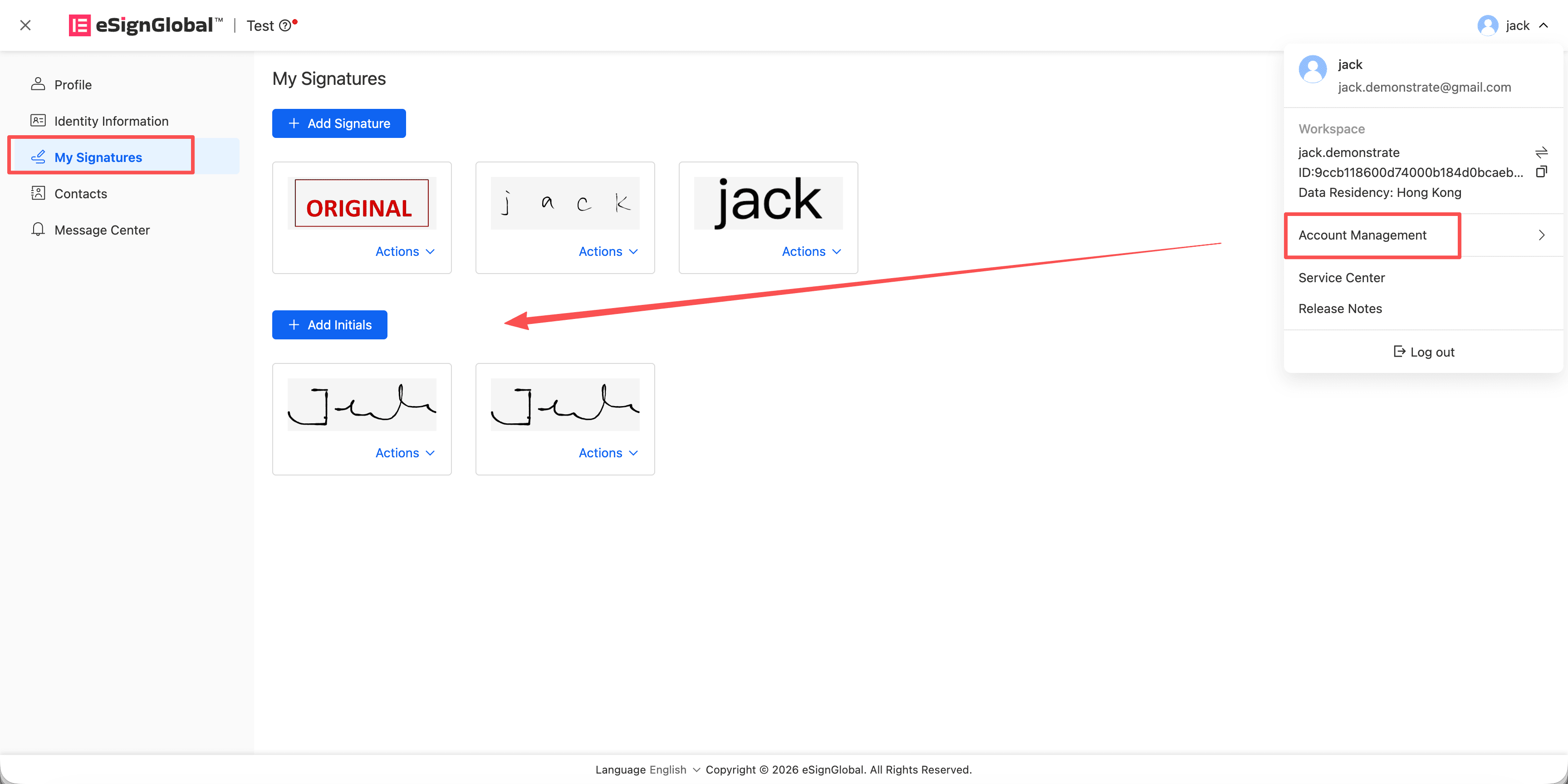
Signers can manage their abbreviated signatures in the Account Center. Abbreviated signatures are displayed separately from full signatures and managed independently.
- Go to the Account Center.
- Open the My Signatures page.
- Locate Add Abbreviated Signature below the “My Signatures” section.
- Choose to create an abbreviated signature using a template, hand-drawing, or uploading.
- Enter or confirm your name; the system will generate suggested abbreviations based on the name.
- After saving, the abbreviated signature will appear in the “My Abbreviated Signatures” list.
Note:
- The system generates default abbreviation suggestions based on the Name. For example,
John Q. Publicdefaults toJQP. Users can still manually adjust, hand-draw, or upload their own abbreviated signatures. - Names are split only by spaces to generate abbreviation suggestions. Symbols such as hyphens, slashes, and commas are not treated as separators.
Completing Abbreviated Signatures at Specified Locations
After opening the signing link, the signer can complete the abbreviated signature.
- Open the signing link.
- Review the document and the locations requiring abbreviated signatures.
- Click on the abbreviated signature control.
- In the “My Seals & Signatures” popup, select an existing abbreviated signature.
- If no available abbreviated signature exists, click the add entry to create a new one.
- Once the abbreviated signature is applied to the control, proceed to handle other required controls.
- Submit the signing after all required fields are completed.
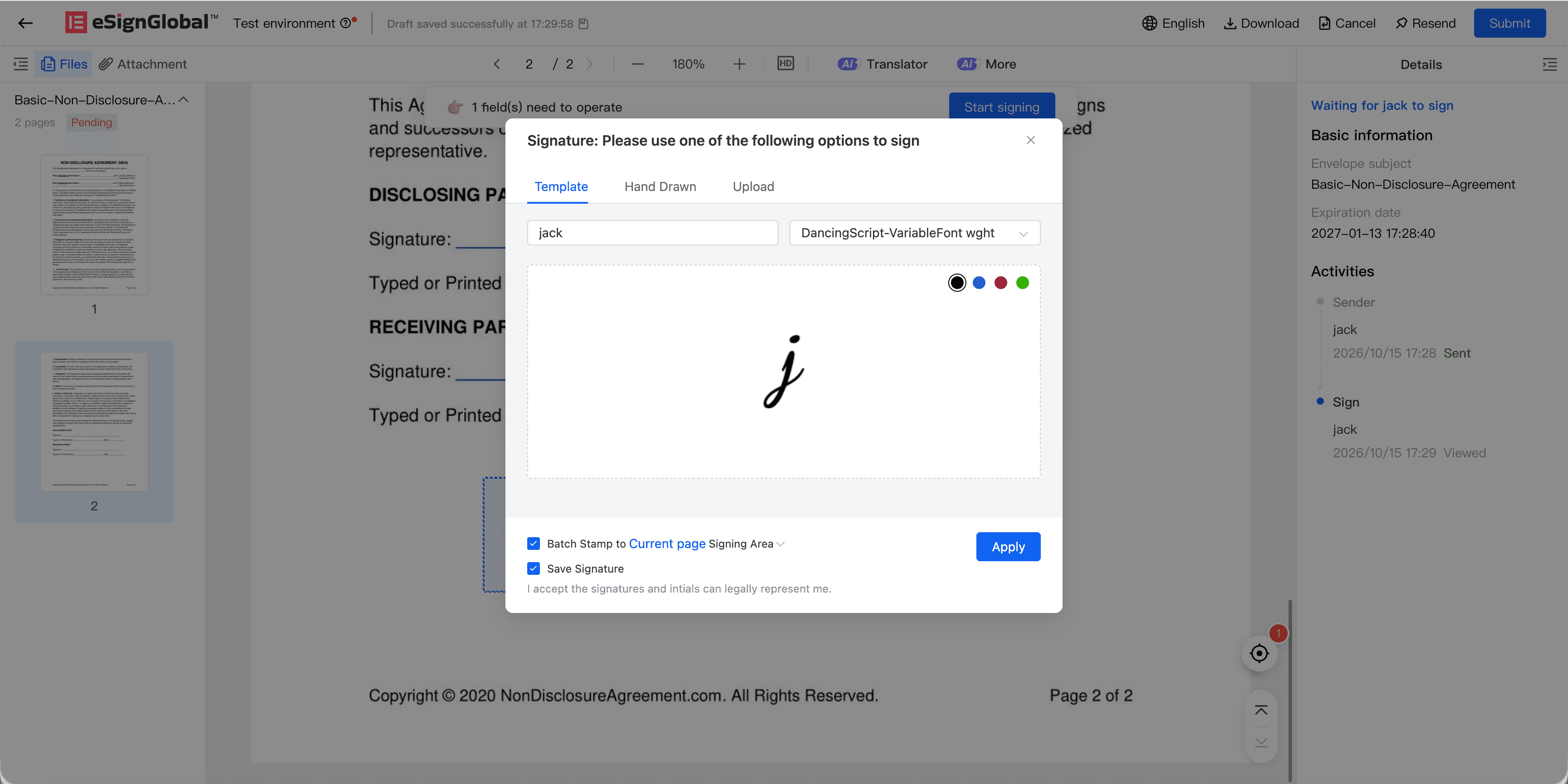
Multiple abbreviated signature controls for the same signer can reuse the same abbreviated signature. After the first selection or creation, subsequent controls can be quickly applied, reducing repetitive actions.
Note:
- Singpass digital signatures only support the Signature control and do not support the Initials control.
- In FDA scenarios, the abbreviated signature control is not displayed or used; only the Signature control that meets scenario requirements is allowed.


