
'%3e%3cpath%20fill-rule='evenodd'%20clip-rule='evenodd'%20d='M6.99935%2012.8327C10.221%2012.8327%2012.8327%2010.221%2012.8327%206.99935C12.8327%203.77769%2010.221%201.16602%206.99935%201.16602C3.77769%201.16602%201.16602%203.77769%201.16602%206.99935C1.16602%2010.221%203.77769%2012.8327%206.99935%2012.8327Z'%20stroke='%23666666'%20stroke-linecap='round'%20stroke-linejoin='round'/%3e%3cpath%20d='M1.16602%207H12.8327'%20stroke='%23666666'%20stroke-linecap='round'%20stroke-linejoin='round'/%3e%3cpath%20fill-rule='evenodd'%20clip-rule='evenodd'%20d='M6.99935%2012.8327C8.28802%2012.8327%209.33268%2010.221%209.33268%206.99935C9.33268%203.77769%208.28802%201.16602%206.99935%201.16602C5.71068%201.16602%204.66602%203.77769%204.66602%206.99935C4.66602%2010.221%205.71068%2012.8327%206.99935%2012.8327Z'%20stroke='%23666666'%20stroke-linecap='round'%20stroke-linejoin='round'/%3e%3cpath%20d='M2.875%202.95898C3.93063%204.01461%205.38896%204.66754%206.99978%204.66754C8.61062%204.66754%2010.069%204.01461%2011.1246%202.95898'%20stroke='%23666666'%20stroke-linecap='round'%20stroke-linejoin='round'/%3e%3cpath%20d='M11.1246%2011.0425C10.069%209.98691%208.61062%209.33398%206.99978%209.33398C5.38896%209.33398%203.93063%209.98691%202.875%2011.0425'%20stroke='%23666666'%20stroke-linecap='round'%20stroke-linejoin='round'/%3e%3c/g%3e%3cdefs%3e%3cclipPath%20id='clip0_1267_9109'%3e%3crect%20width='14'%20height='14'%20fill='white'/%3e%3c/clipPath%3e%3c/defs%3e%3c/svg%3e)


 Service Center
eSign Enterprise Signing
eSign Enterprise Signing
Before using the features in this user manual, please first understand the applicable scope of the enterprise electronic seal function:
-
The enterprise electronic seal applies to signing scenarios requiring an enterprise entity to affix an electronic seal on a contract.
-
The initiator can set participants as enterprise signers when initiating an envelope, and add an enterprise seal signing area for them.
-
The authorized representative of an enterprise signer must complete the necessary authorization before selecting and submitting an enterprise seal.
-
If the selected seal requires approval, the contract will only be finalized after the seal usage approval is approved.
Install Plugin
- Install the eSign (Enterprise Seal) plugin in the plugin center.
Tip:
- If the 【e-Seal Option】 field is missing from the page, the eSign Enterprise Seal plugin may not have been installed in the current workspace yet.

-
Select 【use e-seal】 for 【e-Seal Option】.
-
Enter the enterprise name. Please fill in the actual signing enterprise name to avoid blocking the signing process due to incorrect names.
-
Go to the document settings page and add a signing area for the enterprise signer.
Tip:
- Enterprise signers do not support personal handwritten signatures or personal private seals. The available signing areas for enterprise signers include: Enterprise Seal, Signing Date, and Approval.
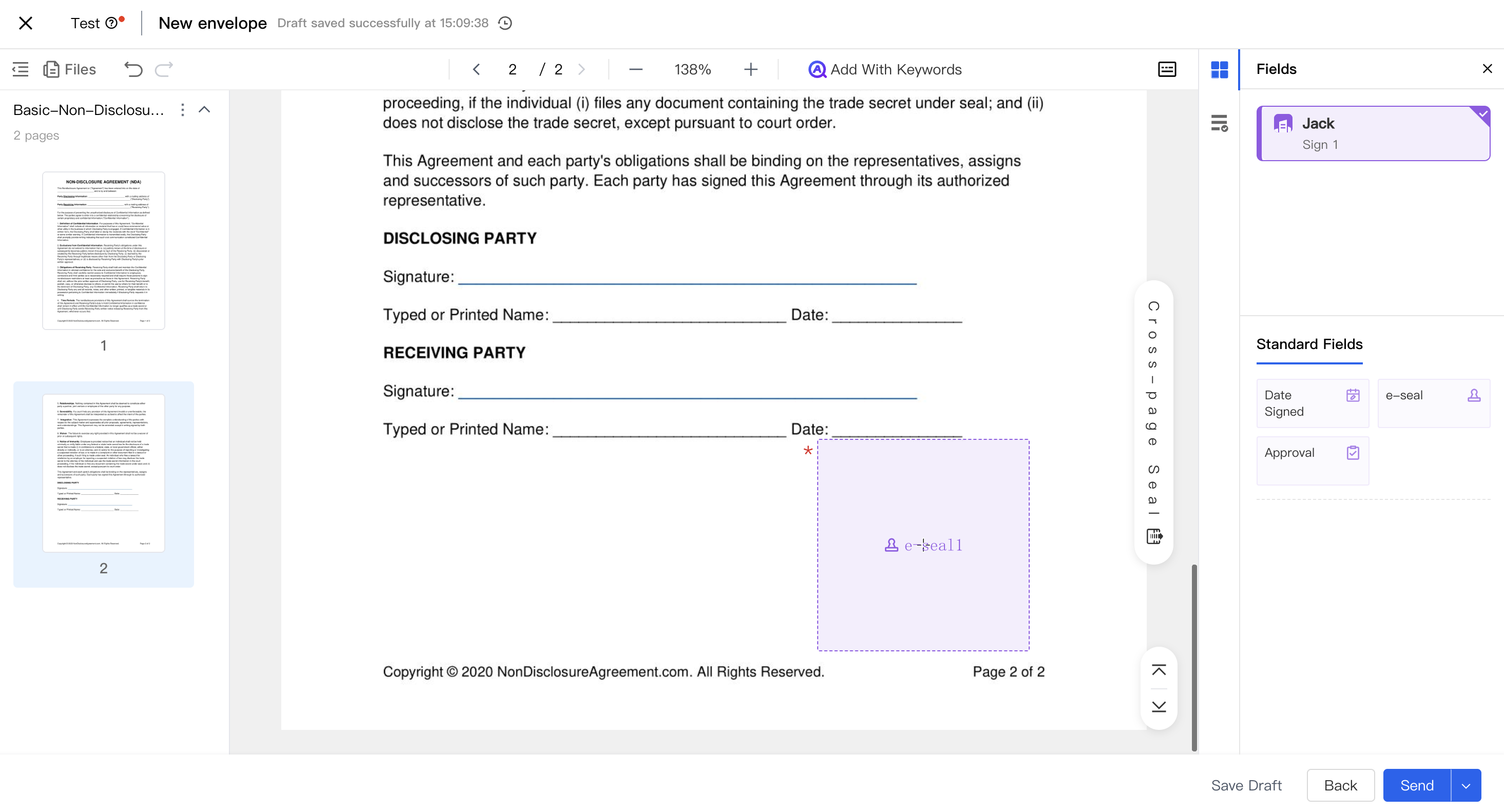
- After confirming that the participant and signing area settings are correct, send the envelope.
Sign Using Enterprise Electronic Seal
-
The authorized representative of the enterprise signer opens the signing link to access the signing page.
-
Click the 【e-seal】 signing area on the page.
-
Complete the authorization as prompted on the page. If you have already completed the required authorization, the system will directly display the list of available seals; if not, the system will guide you through the enterprise or personal authorization process.
Tip:
- Authorization is used to confirm that you are authorized to use the enterprise electronic seal on behalf of the corresponding company.
- If authorization has been completed and is still valid, re-entering the signing page usually does not require repeating the authorization.
Seals may be divided into two categories:

*   Seals that can be used directly: You can proceed to submit after selection.

*   Seals requiring approval: After submission, you must wait for the seal usage approval to be granted.
- Click 【Submit】 and complete a one-time intent confirmation.
Tip:
- Seeing a seal preview placeholder after submission does not mean the contract has been finally signed. The system will only complete the final signing after all seals are confirmed or their approvals are granted.
While under approval, please wait for the approver to process it. Once approved, the system will automatically complete the subsequent signing steps, and you do not need to manually submit again.
Check Approval and Signing Status
-
After submitting the enterprise seal, you can view the current status on the timeline of the signing page.
-
Common statuses include:
-
Under Approval: The seal has been submitted and is awaiting approval for use.
-
Signing: The signer still needs to take further action, or it is awaiting resubmission after being rejected.
-
Signing Completed: All necessary signing actions have been completed.
-
-
While under approval, the relevant signing area will be locked, preventing repeated submission clicks.
-
While under approval, the 【Transfer】 action may be unavailable. Please wait until the approval process concludes before proceeding.
Resubmit After Rejection
-
If any enterprise seal is rejected, the system will notify the handler.
Notifications may be sent via internal messages, email, SMS, Lark, or WhatsApp, depending on your account binding settings.
-
Upon returning to the signing page, the submitted enterprise seals will revert to blank signing areas.
Note:
-
If even one seal in the current submission is rejected, all enterprise seals in that submission must be re-selected and resubmitted.
-
There is no need to contact the initiator to resend the envelope after rejection; the handler can continue processing directly on the current signing page.
-
-
Follow the page prompts to complete the resubmission.
If the resubmission includes seals that can be used directly, you may need to complete the intent confirmation again; if all require approval, simply wait for the approval process.
Approver Processing Seal Approval
-
The approver receives the seal approval task on the e签宝 approval page.
-
After opening the approval task, the pending contract content can be viewed on the approval page.
-
After confirming the contract content and seal information, follow the e签宝 approval page prompts to approve or reject.
Tip:
-
Once approved, the handler does not need to take any additional action, and the system will continue to complete the signing.
-
Once rejected, the handler will receive a notification and can resubmit on the signing page.
-
Common Precautions
-
If 【use e-seal】 is selected during initiation, please ensure the correct company name is entered, otherwise the envelope may fail to send.
-
Enterprise signers can only use signing areas related to enterprise seals and cannot simultaneously use personal signatures.
-
If 【Under Approval】 appears after submission, it indicates that the approver needs to process it; please do not initiate or submit repeatedly.
-
If the envelope is recalled, expires, or another signer rejects it, the current enterprise seal signing process will also end along with the envelope status.
-
After rejection or timeout of the approval, the handler needs to resubmit the enterprise seal on the signing page.


